The Loom Guide¶
A complete, single-page reference for the Loom workspace app. Covers installation, every pane, every settings tab, the agent stack, the kanban, the auto-update pipeline, the release flow, and the underlying architecture.
Loom is a personal command center for builders. One window holds your terminal, editor, AI agent, and task board side by side. Local-first, no tenants, no tiers, no cloud sync.
Windows port: This guide describes the macOS build. The Windows port at
windows-tauri/mirrors the same feature surface on a Tauri 2 + Rust + React stack. Same workspaces, terminals, agents, kanban, and notes. Setup lives inwindows-tauri/README.md, VM-side test path inwindows-tauri/TESTING.md.
This guide is generated and maintained alongside the app. The hosted MkDocs version of these chapters lives at bigbeardedman.github.io/Loom.
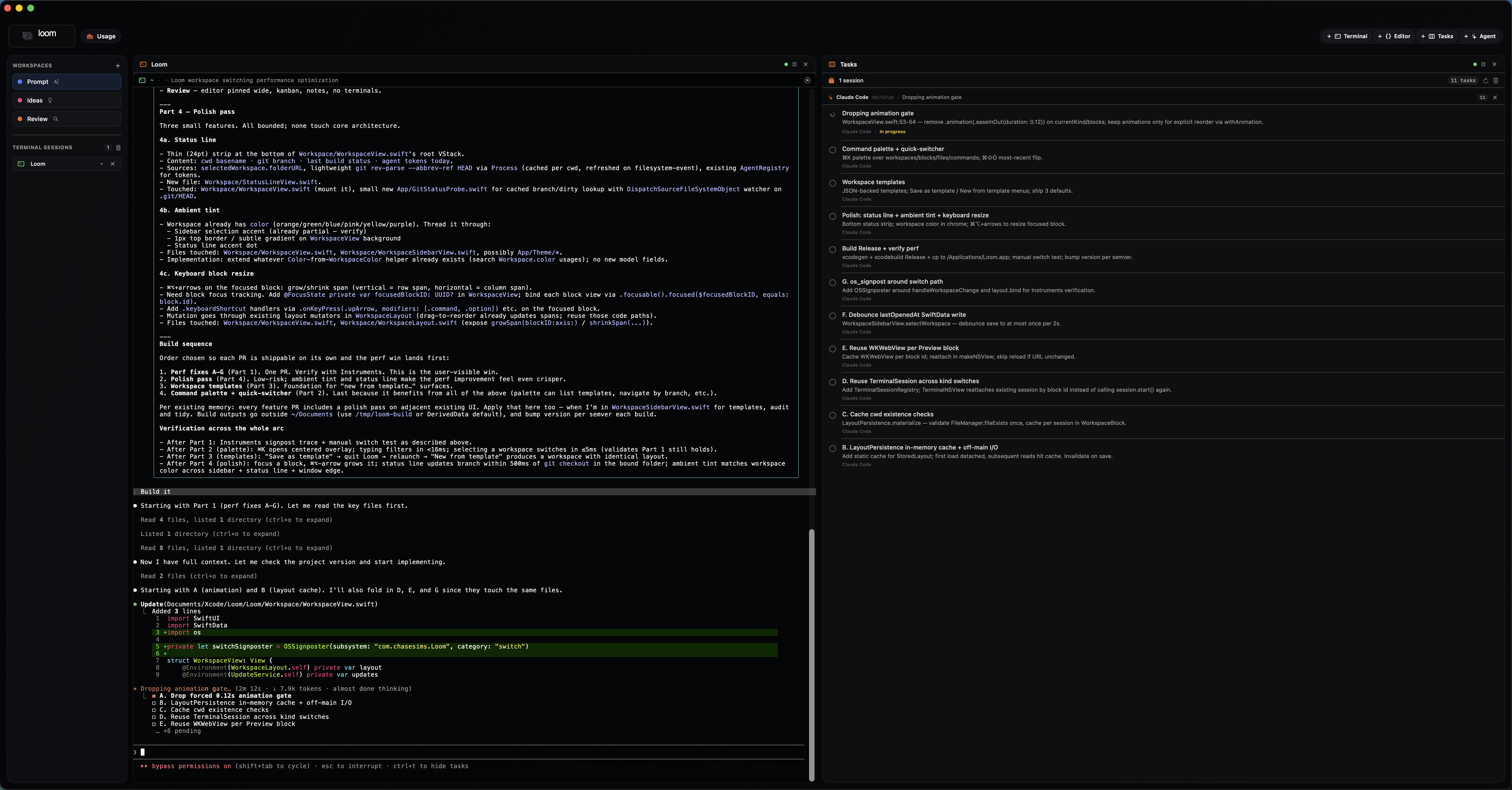
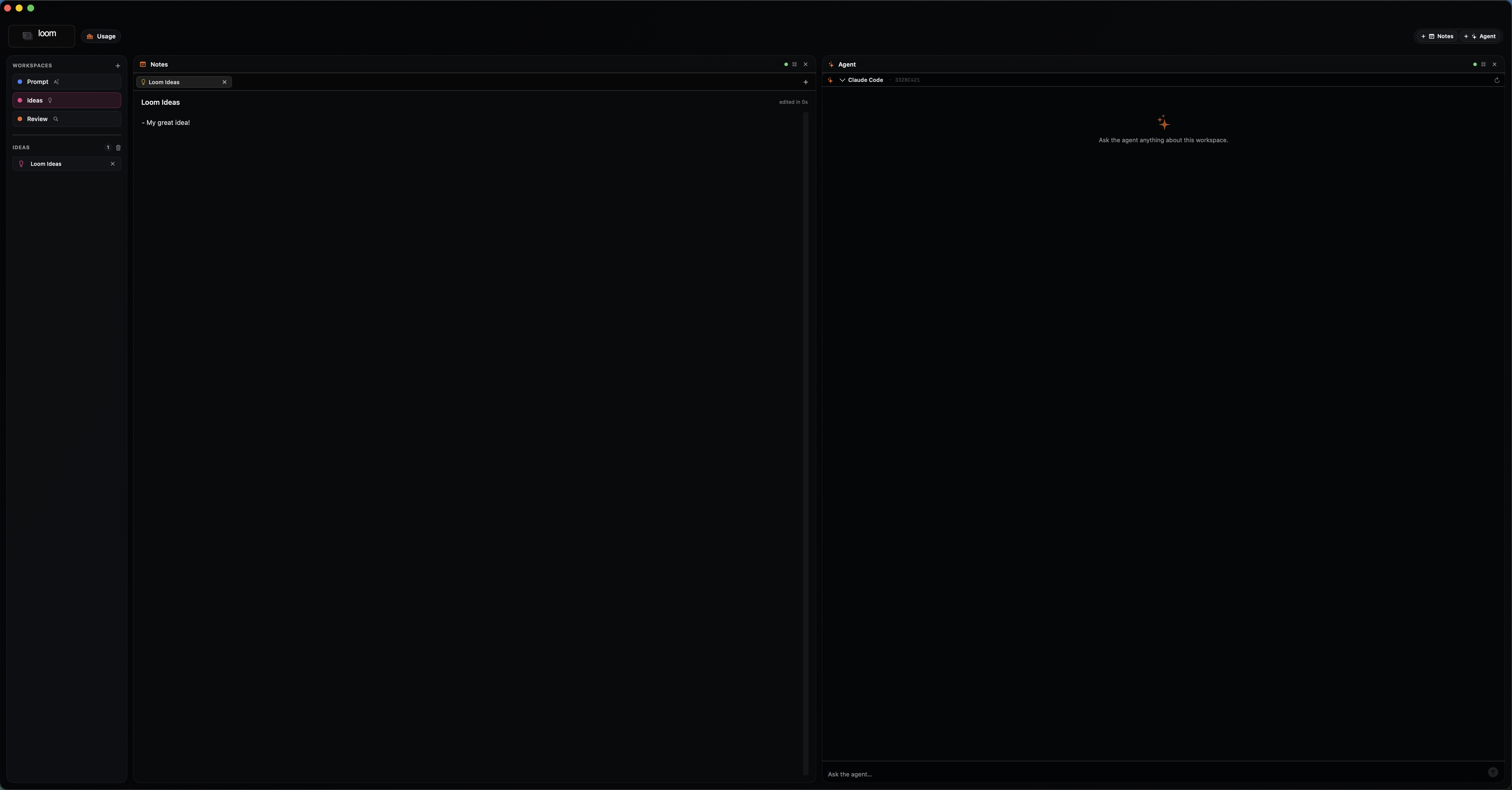
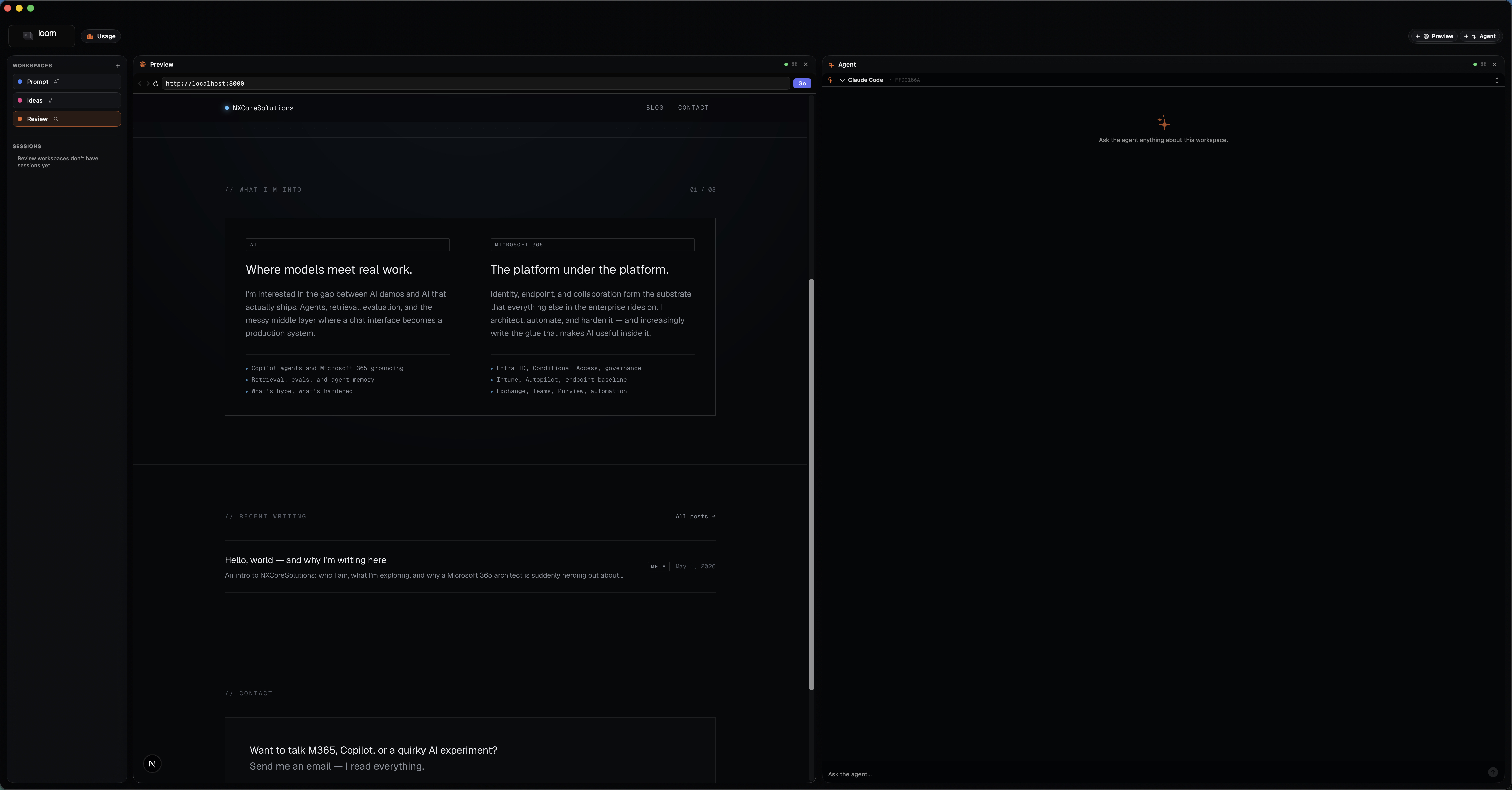
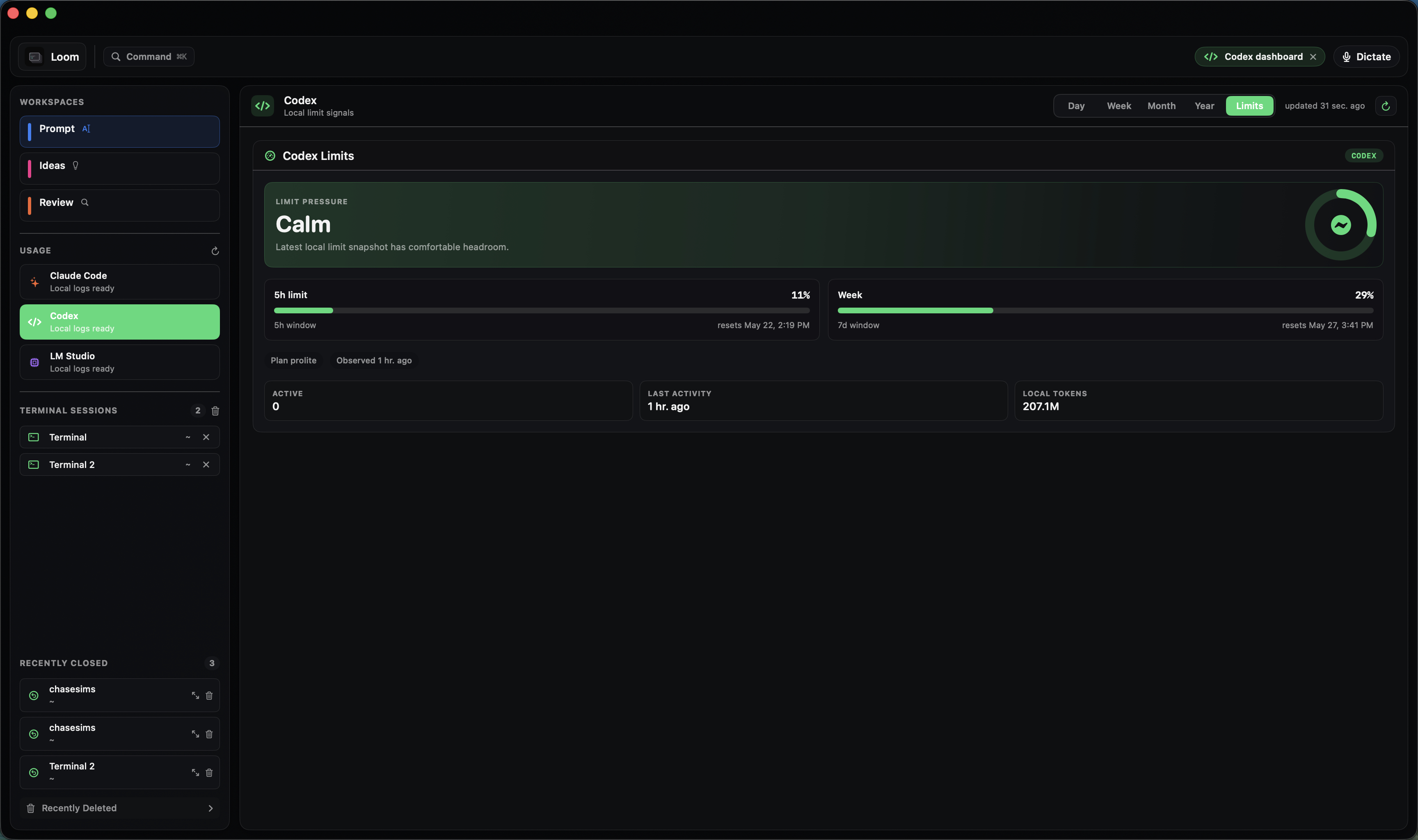
Table of Contents¶
- Overview
- Install
- First Run
- Workspaces
- Prompt Workspace
- Ideas Workspace
- Review Workspace
- Layout System
- Panes
- Terminal
- Editor
- Tasks (Kanban)
- Notes
- Preview
- Agent
- Agent Providers
- Claude Code (Default)
- Anthropic API (Direct)
- Local LLMs (Ollama and OpenAI compatible)
- Custom Providers
- Live Agent Tasks
- Task Handoff
- Usage Dashboard
- Settings
- Updates
- Keyboard Shortcuts
- Architecture
- Security Model
- Reference
- Releasing a New Build
- Building from Source
- Troubleshooting
- Roadmap
1. Overview¶
Loom is a native macOS workspace app built in SwiftUI on Swift 6 with strict concurrency. It targets macOS 14 (Sonoma) and above. The app combines four first-class capabilities in one resizable window:
| Capability | Built on | Notes |
|---|---|---|
| Terminal | SwiftTerm | PTY-backed login shell with click-to-position cursor |
| Editor | SwiftUI TextEditor |
File tree with breadcrumb, plain-text editing |
| AI Agent | Claude Code subprocess + HTTP providers | Sub-agent picker, local LLM streaming |
| Tasks | SwiftData kanban | Five fixed columns, task-to-agent and task-to-terminal handoff |
Loom is single-user by design. There are no accounts, no telemetry, no hosted control plane. Every secret lives in the macOS Keychain. Every persistent record lives in SwiftData on disk. Network access is limited to four code paths: GitHub Releases polling, the Anthropic API (when configured), user-defined local LLM endpoints, and the in-app web preview.
Product Principles¶
- Personal command center first. Optimize for one builder moving quickly.
- Local-first by default. Tasks, settings, workspace metadata, and agent configuration live on this Mac unless explicitly synced.
- Bring your own providers. API keys live in Keychain; provider integrations stay replaceable.
- No artificial tiers. If Loom can do something locally, it should be available.
- Terminal work should be reviewable. Commands, output, exit status, and agent actions become structured history over time.
Status¶
Current shipping version: see project.yml MARKETING_VERSION. Loom 1.x
shipped the four-pane cockpit, multi-vendor agent integration (Claude
Code, Anthropic API, Ollama, OpenAI compatible), the live agent tasks
mirror, the SwiftData kanban with handoff, the rolling Usage dashboard,
stable local codesigning, and SHA-256 verified over-the-air updates.
Loom 2.x extends the cockpit. Highlights:
- Multi-pane terminal splits: a single Terminal block can host 1 to 4 PTY sessions arranged side by side, stacked, or as a 2x2 quad with draggable dividers. Per-pane cwd persists across launches.
- Settings → MCP: a first-class management surface for Claude Code's
MCP server registry. Loom shells out to
claude mcpfor every read and write so Claude Code stays the source of truth. - Command history: a Loom-managed zsh shim (sourced via
ZDOTDIR) appends a JSON record per command tohistory.jsonl. The new Commands panel renders the last 500, newest first. - Settings → Shell: a toggle to opt out of the shell integration without uninstalling the shim.
- ⌘K command palette: workspace switcher, recent-command rerun, and Add-Block actions in one fuzzy-search overlay. Press ↑ in the search field to walk back through the last 50 commands (deduped), ↓ to walk forward, just like a shell prompt.
- Help menu opens
GUIDE.md(⌘?) and the hosted MkDocs site directly. - Clickable banner opens the GitHub repo in the user's default browser.
- Custom About panel with version, build, and inline links to the repo, GUIDE, and MkDocs site.
- Inline command cards in the terminal pane: a per-pane toggle in
the pane header flips between the live PTY and a stack of cards
(filtered by
LOOM_SESSION_ID) so the user can skim a structured history of just that pane without scrolling raw output. - Output capture for programmatic commands: every command sent
through Loom's UI (Commands panel Send, inline card Rerun, ⌘K palette
rerun) is wrapped in the shim's
__loom_capturehelper that tees stdout+stderr to a per-command file. Cards expand in place to show the captured output. Hand-typed commands skip the wrap so interactive TUIs keep working. - Terminal transcripts and recovery: Loom saves local PTY transcripts, shows closed sessions under Recently Closed, and adds Recently Deleted with Recover and Delete Permanently actions. Settings -> Shell controls the transcript cap, defaults to 1 GB, and can prune saved history without stopping active terminals.
2. Install¶
Loom ships as a notarized-shape but ad-hoc-signed .dmg from GitHub Releases.
Steps¶
- Download the latest
Loom-<version>.dmgfrom the Releases page. - Open the DMG.
- Drag Loom onto the Applications alias inside the mounted volume.
- Eject the volume.
First launch (Gatekeeper)¶
The build is ad-hoc signed (no Apple Developer ID), so macOS will refuse to launch it on the first try with the standard "Apple cannot check it for malicious software" dialog.
Bypass once:
- Open
/Applicationsin Finder. - Right-click Loom, choose Open.
- Confirm in the dialog.
Subsequent launches behave normally. macOS remembers the override.
Requirements¶
- macOS 14 Sonoma or later (uses
@Observable, SwiftData, Swift 6 strict concurrency). - Internet access for: GitHub release polling (60 second cadence), the optional Anthropic API, and any local LLM endpoint you configure.
- Optional:
claude(Claude Code CLI) on yourPATHif you want the default agent provider to work without an API key.
Uninstall¶
Drag /Applications/Loom.app to the Trash. Loom-owned data lives in:
~/Library/Application Support/Loom/(staging directory, update manifest, layout JSON, shell history, terminal transcripts, and clipboard image drops in the Loom build)~/Library/Application Support/com.chasesims.Loom/(SwiftData store in the Loom build)~/Library/Preferences/com.chasesims.Loom.plist(UserDefaults in the Loom build)- macOS Keychain, service
com.chasesims.Loom(Anthropic key, local endpoint bearer tokens)
See File Paths and Keychain Keys for the full inventory.
3. First Run¶
When Loom opens for the first time it seeds three default workspaces (Prompt, Ideas, Review) and a corresponding empty layout for each. The window is sized 1024 by 640 minimum, 1400 by 800 by default.
A 30-second tour:
- Click a workspace in the left sidebar to select it. The center deck re-renders with that workspace's pane lineup.
- Use the top-bar Add Block strip (or
Command Shift 1throughCommand Shift 4) to add a pane that the current workspace kind allows. - In a Prompt workspace, an Agent pane is preconfigured. Type a prompt at the bottom and press Return to send it to the default Claude Code provider.
- Drag any pane's title bar to reorder. Drop near the left, right, top, or bottom edge to pin the pane to that side. Drop on top of another pane to swap their positions.
- Use
Command Option Arrowto pin the focused pane via keyboard, orCommand Option Fto toggle the focused pane to a full-row span.
Setting a workspace folder¶
Each workspace can carry a folder URL (its working directory). Right-click a workspace row in the sidebar and choose Set folder... to bind one. Once set, the folder feeds three things:
- The Terminal pane's startup
cwd. - The Editor pane's file tree root.
- The Agent pane's
cwd(passed to theclaudesubprocess).
The folder also appears under the workspace name in the sidebar so the row self-documents.
Renaming panes¶
Double-click a pane's title bar to rename it inline. The custom name is remembered per-block and survives workspace switches. Right-click the title bar and choose Reset name to clear the override.
4. Workspaces¶
A workspace is one named layout in the sidebar with its own folder, color, kind, and pane configuration. Loom ships with three kinds, picked at creation and immutable afterward.
| Raw value | Sidebar label | Icon | Available panes |
|---|---|---|---|
code |
Prompt | text.cursor | Terminal, Editor, Tasks, Agent |
ideas |
Ideas | lightbulb | Notes, Agent |
review |
Review | magnifyingglass | Preview, Agent |
The kind drives:
- Which buttons appear in the top-bar Add Block strip.
- Which
Command Shift <N>shortcut adds which pane (the order inavailablePanelsis the shortcut order). - Which sidebar section appears below the workspace list (Terminal Sessions, Ideas, or nothing for Review).
Persistence¶
Each workspace persists:
- Its name, color, kind, folder path, last-opened timestamp, created-at timestamp.
- Its layout per kind (block list with kind, custom title, pin, full-row span, preview URL override, terminal slot index, preview slot index, terminal cwd path).
Layout is stored in ~/Library/Application Support/Loom/layout.json and
keyed by workspace kind. The store is read once into an in-memory cache; saves
are coalesced through a single in-flight task so two rapid mutations cannot
race each other to disk.
Switching workspaces¶
- Click a row in the sidebar.
Command Shift Oflips back to the previous workspace (handy when bouncing between Prompt and Review).- The previously selected workspace is remembered in
WorkspaceLayout'spreviousWorkspaceIDso flip is one keystroke.
When you switch workspaces Loom disables the default SwiftUI cross-fade and swaps the deck in a single frame. Cross-fades cost about 100ms of perceived latency for no payoff here.
4.1. Prompt Workspace¶
Loom's cockpit. Four panes available, in this default order:
- Terminal (
Command Shift 1) - Editor (
Command Shift 2) - Tasks (
Command Shift 3) - Agent (
Command Shift 4)
Default layout: Terminal, Tasks, Agent (the Editor pane is added on demand).
Use Prompt for:
- Active build and debug loops.
- Driving a CLI agent (Claude Code, Codex, Gemini) inside the terminal while watching its tasks mirror in the Tasks pane.
- Holding multiple terminals side by side. Add as many
Terminalblocks as you want; each gets an auto-incrementing slot index (Terminal, Terminal 2, Terminal 3) so the sidebar list stays legible.
4.2. Ideas Workspace¶
Two panes available:
- Notes (
Command Shift 1) - Agent (
Command Shift 2)
Use Ideas for:
- Drafting copy, plans, and journal-style notes.
- Bouncing rough ideas off a model without spinning up a terminal.
- Capturing fleeting thoughts that do not yet belong on a kanban board.
Notes are SwiftData-backed (IdeaNote model) with autosave. Each note has a
title and a body. The sidebar's Ideas section lists every note in the active
workspace, sorted newest-first.
4.3. Review Workspace¶
Two panes available:
- Preview (
Command Shift 1) - Agent (
Command Shift 2)
Use Review for:
- Looking at a localhost dev server alongside the agent that built it.
- Reviewing a deployed page, a GitHub PR diff, or rendered output without switching to a separate browser.
The Preview pane defaults to http://localhost:3000 for the first preview
block, http://localhost:3001 for the second, etc. The auto-incrementing
slot is global across kinds so two Review workspaces' previews do not
collide. The block remembers any URL override; setting the URL back to the
default clears the override so the slot keeps tracking its port.
5. Layout System¶
Every pane (called a "block" internally) lives on the workspace's deck. The deck arranges blocks into a grid that adapts to the window size. Blocks can be reordered via drag, pinned to an edge, expanded to a full row, or swapped with another block.
Deck capacity¶
The deck's capacity scales with the window size:
| Window width | Window height | Cols | Rows | Max blocks |
|---|---|---|---|---|
| 1800+ | 900+ | 4 | 3 | 12 |
| 1300+ | (any) | 4 | 2 | 8 |
| 900+ | (any) | 3 | 2 | 6 |
| (smaller) | (any) | 2 | 2 | 4 |
When the deck is at capacity the Add Block buttons in the top bar dim out and tooltips read "Block limit reached for this window size." Resize the window or remove a block to add a new one.
Pinning¶
Pinning docks one block to one edge of the deck. The remaining blocks distribute evenly across the complementary region.
| Shortcut | Action |
|---|---|
Command Option Left |
Pin to left half |
Command Option Right |
Pin to right half |
Command Option Up |
Pin to top half |
Command Option Down |
Pin to bottom half |
Command Option F |
Toggle full row span |
Command Option U |
Unpin |
Drag-to-pin is supported as well. When you drag a pane near an edge, a dashed orange-blue ghost appears showing where the pin will land. Corner zones (top-left, top-right, bottom-left, bottom-right) take priority over edge zones. Dropping in a corner pins the block to that quadrant; the "neighbor" quadrant takes the next-most-recent block; the rest fill the complementary half-row.
Only one block can be pinned at a time. Pinning a second block clears the first pin.
Full row span¶
Command Option F toggles the focused block between "shares its row with
peers" and "spans the full deck width." Useful for the Terminal pane when
you need wide command output without unpinning everything else.
Reorder by drag¶
Drag a block's title bar to reorder it. Drop on top of another block to swap. Drop near an edge to pin. The deck animates with a 320ms spring; the ghost indicator uses a 120ms ease-out so the drop target stays snappy.
Resize¶
Each block fills its allotted grid cell, but the cell sizes are adjustable. Hover the gap between any two blocks. A faint hairline appears and the cursor flips to the horizontal or vertical resize variant. Drag to bias that seam: width within a row, height between rows. The deck stays gap-free; minimum cell size (140w by 160h) clamps the drag so neither side disappears. Double-click a divider to reset just that pair back to even. Right-click the deck background for Reset Grid Layout to clear every weight and pin fraction in one shot.
Pin boundaries are draggable too. Pin a block to the left edge, then drag the seam between the pin and the rest of the deck. The pin can claim anywhere from 20% to 80% of the deck along its axis. Corner pins expose two draggable seams (one per shared edge) and share a single fraction.
Stacked rows (one block per row) used to be height-only because there was no neighbour to share width with. Every row now exposes a trailing-edge handle on the rightmost block: hover the block's right edge, the cursor flips to horizontal resize, and dragging left shrinks the block toward 30% of its cell while exposing deck background on the right. The handle appears on the last block of multi-block rows too, so the row's right side is always grabbable. Double-click the handle to restore full-cell width.
Sizes persist per block in layout.json, so reordering or reopening Loom
preserves your tuned layout.
Persistence¶
Layout state is serialized via LayoutPersistence to
~/Library/Application Support/Loom/layout.json. Each kind (Prompt, Ideas,
Review) has its own block list. Switching kinds preserves each kind's
last-seen layout: drop two terminals into a Prompt workspace, switch to
Ideas, switch back, and the two terminals are still there.
What is not persisted: the live TerminalSession object (PTYs are not
checkpointable, so a restored terminal block gets a fresh shell that respawns
in the saved cwd) and the in-memory message log of an Agent pane.
6. Panes¶
6.1. Terminal¶
Loom's Terminal pane is a real terminal, backed by SwiftTerm. It runs your login shell with a TTY so interactive tools (Vim, top, fzf, ssh) work the same as they do in iTerm.
What it ships with¶
- Login shell. Defaults to
/bin/zsh -l; respects$SHELLif set. The argv 0 is set to-zshso the shell treats itself as a login shell and runszprofile/zshrc(where Homebrew'sPATHlives). - TTY allocation.
top,bat, and friends get a real width. - Working directory seeded from the workspace folder.
- Standard ANSI color and 256-color support; truecolor via SwiftTerm.
TERM=xterm-256color,COLORTERM=truecolor,TERM_PROGRAM=Loom,TERM_PROGRAM_VERSION=<MARKETING_VERSION>.
What it strips from the inherited environment¶
The PTY shell sources your dotfiles and re-exports anything you actually want. Loom defensively strips a list of credential-shaped variables before spawning the shell so a leaked secret in Loom's launch environment does not flow into every subprocess you run:
- Exact matches:
ANTHROPIC_API_KEY,OPENAI_API_KEY,OPENAI_ORG_ID,GOOGLE_API_KEY,GEMINI_API_KEY,GROQ_API_KEY,MISTRAL_API_KEY,DEEPSEEK_API_KEY,XAI_API_KEY,AWS_SECRET_ACCESS_KEY,AWS_SESSION_TOKEN,AZURE_OPENAI_API_KEY,HUGGINGFACE_TOKEN,HF_TOKEN,GITHUB_TOKEN,GH_TOKEN,NPM_TOKEN,STRIPE_SECRET_KEY. - Suffix matches: any variable ending in
_API_KEY,_SECRET_KEY,_ACCESS_TOKEN, or_AUTH_TOKEN.
Claude click-to-edit¶
When Claude Code (claude) is the foreground process, single-clicking inside
its active prompt sends arrow-key sequences to walk the cursor to the clicked
column and row. That makes it possible to click into already-typed Claude
prompt text and edit from that point without manually arrowing around.
The behavior is intentionally Claude-only. Sending arrows into zsh, Codex, Gemini, or an arbitrary TUI can trigger command history or tool-specific shortcuts instead of moving text insertion. Cross-row clicks are bounded to a 10-row radius from the cursor so accidental scrollback clicks do not blast a hundred arrow sequences into the foreground.
Single clicks with any modifier (Shift, Command, Option, Control) are ignored so SwiftTerm's native selection and word-lookup gestures keep working.
CLI agent detection¶
The Terminal session reads tcgetpgrp on the PTY's child file descriptor to
find the foreground process group, then sysctl(KERN_PROC_PID) to read its
command name. Three names are currently recognized: claude, codex,
gemini.
When detection fires:
- The active sessions badge in the workspace sidebar increments.
- The Tasks pane (in Prompt workspaces) starts mirroring the agent's live
task list from
~/.claude/tasks/<session>/<id>.json. - Claude terminal prompts unlock click-to-edit cursor movement.
When the agent process exits, detection drops on the next 2 second poll.
Copy / paste / image drop¶
Standard macOS shortcuts: Command C copies the selection, Command V
pastes. Selection works with mouse drag.
When the Terminal pane receives an image-only pasteboard, Loom inserts an
editable Codex argument instead of sending image bytes into the PTY:
--image '<path>'. Finder-copied image files reuse their existing path.
Direct clipboard images, such as screenshots, are saved as PNG files under
~/Library/Application Support/Loom/Clipboard Images/ in
the Loom build. Loom does not press Return; you review or edit the
command and run it yourself.
If the clipboard contains both text and image data, text paste wins. That
keeps rich browser and document copies from unexpectedly becoming image
arguments. Command Shift V keeps its plain-text behavior for text paste and
uses the same image argument behavior only when no text is available.
Dragging an image file or raw image data onto a Terminal pane uses the same
argument shape: Loom inserts --image '<path>' at the cursor and does not
submit the command. Finder-dragged image files keep their original path; raw
dragged images are saved as PNG files in the same Clipboard Images folder.
Scrollback¶
SwiftTerm keeps the default 1000-line scrollback. Scroll with two-finger
drag or your terminal's Page Up / Page Down (depending on terminfo). This
live scrollback is separate from saved terminal transcripts.
Restart¶
There is no "restart shell" button. Close the pane (the x in its title bar) and re-add it to get a fresh shell that respawns in the workspace folder. The previous live scrollback is lost, but the saved transcript moves to Recently Closed when terminal history is enabled.
Multi-pane splits (v1.9.0+)¶
A single Terminal block can host 1 to 4 PTY sessions arranged side by side, stacked top-to-bottom, or as a 2x2 quad. Each pane runs its own login shell; the cwd of the pane you split from seeds the cwd of the new pane.
Pane header buttons (right side):
- Split (
+ rectangle on rectangle) adds a new pane to this block, capped at four. Hidden when the block already has four panes. - Axis toggle (
rectangle.split.1x2/2x1) at 2 or 3 panes flips between left-right and top-bottom arrangement. Hidden at 1 pane (no split) and 4 panes (always rendered as 2x2 quad). - Close pane (
xmark.circle) removes that pane and cleans up its PTY. Hidden when only one pane remains. - Send Ctrl-C (
stop.circle) sends an interrupt to the foreground process of this pane only.
Splits use SwiftUI's native HSplitView / VSplitView, so the divider
between panes is draggable. Layouts persist across launches: every pane's
cwd is recorded in LayoutPersistence and restored on next open. PTYs
themselves don't survive relaunch; each restored pane spawns a fresh
shell in its saved cwd.
Live-agent counts walk every session in every terminal block, so each pane that has a CLI agent (claude / codex / gemini) in the foreground counts toward the workspace badge.
Session transcripts and recovery (Loom)¶
When terminal history is enabled, every Terminal pane writes its PTY output to
a local ANSI transcript under ~/Library/Application Support/Loom Testing
Edition/Terminal History/transcripts/. Metadata lives next to it in
sessions.json. This is a transcript of terminal output, not a resurrected
process: closing a terminal still stops the shell.
In the Prompt workspace sidebar:
- Closed terminal panes appear under Recently Closed.
- Clicking a closed row opens a transcript reader.
- Start Fresh Shell Here creates a new Terminal block at the saved cwd.
- The trash button moves the transcript to Recently Deleted.
- Recently Deleted lives at the bottom of the Terminal Sessions section and offers Recover or Delete Permanently for each transcript.
Settings -> Shell -> Terminal History controls whether transcripts are saved, the storage limit, and pruning. The default limit is 1 GB; available choices are 250 MB, 500 MB, 1 GB, 2 GB, 5 GB, and 10 GB. When saved history exceeds the limit, Loom prunes old closed/deleted transcripts first and never kills an active terminal. Prune Terminal History clears saved transcripts; active terminal panes keep running, but their saved transcript files start over.
Inline command cards (v2.1.0+)¶
Each pane's header carries a list/terminal toggle
(list.bullet.rectangle to enter card mode, terminal to return to
live). In card mode the live PTY view is replaced by a vertical stack
of cards rendered from the JSONL log, filtered to this pane's
LOOM_SESSION_ID so other panes' commands stay out of the way. Cards
show command, status badge (green for exit 0, orange × otherwise), cwd,
relative timestamp, and duration when at least 1s.
Per-card actions:
- Copy copies the command to the pasteboard.
- Rerun sends the command to the workspace's first terminal session (so a card from a closed pane can be re-issued in the active one).
Card mode is per-pane local state. Toggling does not persist across launches; the live PTY itself keeps running underneath either way, so flipping back is free.
Roadmap items¶
- Inline cards rendered alongside scrollback rather than replacing it.
- bash and fish shim variants so non-zsh users get parity.
- CodeEdit integration as a richer editor surface.
6.2. Editor¶
The Editor pane today is a plain-text file editor backed by SwiftUI's
TextEditor, with a recursive file tree on the left.
What works today¶
- Browse the workspace folder via the file tree (left side).
- Click a file to open it; non-binary text files load into the editor.
- Edit the buffer;
Command Ssaves to disk. - A yellow dot in the title bar marks unsaved changes.
- The breadcrumb in the title bar shows the current file path relative to
the workspace folder (or relative to
~if it lives outside). - A folder icon button in the title bar opens an
NSOpenPanelto pick a file outside the workspace tree. Command Sshortcut to save,xmark.circlebutton to close.
Binary file guard¶
The editor refuses to open files whose extension is in this set:
png, jpg, jpeg, gif, webp, heic, icns,
pdf, zip, tar, gz, dmg, app,
mp3, mp4, mov, wav, flac,
ttf, otf, woff, woff2,
sqlite, db, store, data
Trying to open one shows "Binary files aren't supported in the editor yet." in the error banner.
What it does not do (yet)¶
- Syntax highlighting.
- Multi-file tabs.
- Diff or git decoration.
- Find and replace.
The roadmap includes a CodeEdit
integration to swap the plain TextEditor for a real NSTextView-based
editing surface with syntax highlighting and Loom-native chrome.
6.3. Tasks (Kanban)¶
A SwiftData-backed kanban board. Available in Prompt workspaces.
Models¶
KanbanBoard
  ├── name
  ├── createdAt
  ├── workspace (relationship)
  └── columns: [KanbanColumn]
       ├── name
       ├── position
       ├── board (relationship)
       └── cards: [KanbanCard]
            ├── title
            ├── instructions
            ├── taskKnowledge
            ├── status (KanbanStatus enum)
            ├── agentName
            ├── projectPath
            └── timestamps
Five fixed columns¶
The board ships with five status columns. Order is fixed; renaming is not supported today.
| Column | Status raw value |
|---|---|
| Todo | todo |
| In Progress | inProgress |
| In Review | inReview |
| Complete | complete |
| Cancelled | cancelled |
Drag cards between columns to update status.
Card fields¶
title. Short label shown on the card face.instructions. Long-form description. Surfaced in the inspector.taskKnowledge. Free-form notes and prior context.status. Drives the column.agentName. Optional CLI agent name to use when handing off to the Agent pane (passed as--agent <name>).projectPath. Working folder for handoff. Defaults to the workspace folder if blank.
Inspector¶
Click a card to open the inspector. Edit any field; changes save immediately to SwiftData. Press Escape to dismiss.
Persistence¶
KanbanCard is a @Model. The container is on disk under the standard
SwiftData application-support location, so cards survive app relaunches.
Live agent tasks block¶
When a CLI agent is detected in any Terminal pane (in any workspace), the Tasks pane shows its in-progress task list above the kanban columns. See Live Agent Tasks.
6.4. Notes¶
The Notes pane is a list of IdeaNote records on the left and a markdown-
adjacent body editor on the right. Available in Ideas workspaces.
Each note has:
title(auto-derived from the first line of the body)body(plain text, soft-wrapped, monospaced)createdAtandupdatedAttimestamps
Notes are workspace-scoped (workspace: Workspace? relationship). The
sidebar's Ideas section shows the active workspace's notes sorted newest
first; double-click any row to rename inline.
Bulk operations:
- The trash icon in the sidebar's Ideas section header opens a confirmation, then deletes every note in the active workspace.
6.5. Preview¶
The Preview pane is a WKWebView with a URL bar, back / forward / reload
controls, and a small loading indicator overlay. Available in Review
workspaces.
URL handling¶
Type into the address bar and hit Return (or click Go) to navigate.
URL normalization rules:
- Anything containing
://is used as-is. - A leading
/or~is treated as a file path;~is expanded. - A bare
localhostor a leading digit is prefixed withhttp://. - Otherwise the input is prefixed with
https://.
Auto-default URL¶
Each Preview block has an autoPreviewIndex (1, 2, 3, ...) used to compute
its default URL: http://localhost:3000 for the first block,
http://localhost:3001 for the second, etc. The default is recomputed across
all kinds so two Review workspaces with one Preview each both default to
localhost:3000 only if they were created in different sessions; auto
indexes are unique within a single launch.
If you set a custom URL, the block remembers it. Resetting the URL field to the default clears the override.
WebKit configuration¶
WKWebView is configured with javaScriptCanOpenWindowsAutomatically: false
to avoid pop-ups during dev preview. The WebController is owned by the
block (not the view) so the loaded page survives workspace switches without
forcing a full reload of the previewed URL.
6.6. Agent¶
The Agent pane is a streaming chat surface that routes prompts to one of two provider families (CLI subprocess, HTTP streaming) through a single picker. Available in Prompt, Ideas, and Review workspaces.
See Agent Providers for the per-provider details. This section covers the pane mechanics.
Header¶
The header carries:
- A spark icon (orange).
- The agent picker (vendor and display name with a chevron).
- A subtitle: for CLI providers, the first 8 characters of the session id; for local HTTP providers, the endpoint host (and port).
- A refresh button to re-query the registry. Useful after
claude agentsadds a new sub-agent orollama pulllands a new model. - A small spinner when the registry is refreshing.
- During an in-flight turn: a progress spinner and a Stop button.
Picker¶
The picker groups agents by section. Sections are determined by each
descriptor's group field:
Defaultfor Claude Code's vendor default.Plugin agents,Built-in agents, etc. for sub-agents discovered viaclaude agents list.Local . <endpoint name>for each Ollama model or each OpenAI-compatible endpoint.
Click any item to switch providers within the same pane. Switching mid- conversation creates a new logical conversation; the new provider does not get the prior history of the previous one. Open a fresh workspace to start clean across providers.
Message bubbles¶
Three roles render with distinct chrome:
| Role | Avatar | Background |
|---|---|---|
| User | person.crop.circle.fill (blue) | white 5% |
| Assistant | sparkles (orange) | white 3% |
| System | exclamationmark.bubble (gray) | orange 8% |
Assistant bubbles label themselves AGENT for CLI providers and LOCAL for
Ollama / OpenAI-compatible endpoints. Text is selectable; an empty bubble
during streaming shows a single ellipsis.
Input bar¶
A multiline TextField (1 to 6 lines) with a placeholder ("Ask the
agent..."). Press Return to send, Shift Return for a newline. The send
button (orange arrow) lights up when the draft is non-empty and no turn is
in flight.
Streaming¶
| Provider | Stream | Cancel mechanism |
|---|---|---|
| Claude Code (CLI) | One-shot. Bubble fills when the subprocess exits. | Process.terminate() on the active subprocess. Resumes on next turn. |
| Anthropic API | Live token stream (SSE) | Cancels the URLSession task. |
| Ollama | Live token stream (NDJSON) | Cancels the URLSession task. |
| OpenAI compatible | Live token stream (SSE) | Cancels the URLSession task. |
Conversation memory¶
- CLI providers retain context server-side via
--resume <session-id>. The session id is shown in the header so you can see when a new conversation starts. - HTTP providers are stateless. Loom replays the full chat history on every turn, so context survives but request size grows over the conversation.
Per-workspace state¶
Each workspace renders its own Agent pane with local message state. The in-memory log survives workspace switches (the pane's view re-mounts but the state is held by the deck), but it is not persisted across app relaunches today.
Workspace context block¶
Every prompt the Agent pane sends carries a workspace snapshot, rebuilt at send time, so the model can ground its answer in the project the user is sitting in. The snapshot includes:
- Workspace name + kind (
Loom (Ideas),vendetta (Prompt), …) — drawn from the workspace metadata. - Project folder path when the workspace has one configured. Set the folder via the sidebar inline editor.
- Project memory — Loom reads
CLAUDE.md,AGENTS.md,GUIDE.md, andREADME.mdfrom the workspace folder (priority order). Each file is trimmed to ~1.8 KB and the combined block is capped at ~5 KB so the prompt stays compact. - Active idea tab name + body, only in Ideas workspaces. The body is
read from the
IdeaNoteat send time, so anything you've just typed is included. - Sibling idea tab summaries — title plus a ~240-char excerpt for up to eight other notes in the same workspace, so the agent doesn't repeat ideas already captured.
How it ships per provider:
- Anthropic / Ollama / OpenAI-compatible receive the snapshot via the
systemprompt every turn. The user message stays untouched; the chat history replayed to the provider matches what the user typed. - Claude Code / Codex / Gemini subprocess agents don't take a separate
system message in our
-p-mode invocation, so Loom prepends the snapshot under a## Loom workspace contextheading and ends the prompt with a## User requestsection before the user's question. This means each CLI turn carries the workspace block — fresh on every send.
The snapshot layer is WorkspaceContext.snapshot() in
Loom/Agents/WorkspaceContext.swift; the prompt builder lives in
AgentPaneView.formatContextBlock(_:). Notes panes publish the active
body + sibling summaries via closures so the agent reads the freshest copy
without a custom ModelContext dependency.
6.7. Commands¶
The Commands panel renders the JSONL log written by the Loom shell integration (see §18). Every command run inside a Loom terminal pane becomes a row: command text, cwd, started timestamp, duration, and an exit-status badge. Available in Prompt workspaces; add it the same way you'd add a Terminal or Editor block.
Header¶
- Title with the workspace folder name (when filtering is on).
- Workspace only checkbox (default on): hides commands whose
cwdisn't inside the workspace's folder. Off shows every command across every Loom terminal you've ever opened. - Refresh button forces an immediate re-read.
Per-row actions¶
- Status badge: green checkmark for exit 0, orange × for non-zero.
- Copy copies the command text to the macOS pasteboard.
- Send (when a Terminal block exists in the active workspace) submits the command to the first terminal session as if you'd typed it. Useful for re-running something from earlier without retyping.
Polling¶
Two-second poll via CommandHistoryService. The service short-circuits
when the file's size hasn't changed since the previous tick, so an idle
panel costs one stat() call per cycle. Records are capped at 500 newest
to keep LazyVStack rendering fast.
Privacy¶
Loom only reads files under ~/Library/Application Support/Loom/shell/
for command history in Loom. Nothing leaves your machine.
7. Agent Providers¶
7.1. Claude Code (Default)¶
Loom's default agent. Drives the Claude Code CLI as a subprocess so the chat surface uses your existing OAuth login. No API key needed.
Requirements¶
claudeonPATH. Install vianpm i -g @anthropic-ai/claude-codeor the official installer.- An authenticated Claude Code session (
claude auth login).
If claude is not on PATH, sending a prompt fails with "Failed to launch
claude:" plus the underlying error. Surface it in the chat error banner.
Subprocess invocation¶
ClaudeCodeProvider builds the argv array directly and runs through
/usr/bin/env:
The first turn passes --session-id <uuid>. Subsequent turns pass
--resume <uuid> so the conversation has memory.
Arguments are passed as an array, never as a shell string. This keeps any user-controlled value (the prompt, the agent name) from being interpreted as shell syntax.
PATH resolution¶
The Claude Code provider runs zsh -lic 'echo $PATH' once on the first send
to capture the user's interactive PATH. The result is cached in a static
across the app's lifetime so subsequent sends do not re-spawn a login shell
just to read PATH.
Sub-agent picker¶
The Agent registry queries claude agents list and parses the textual
output:
Each row becomes an AgentDescriptor grouped under its section header.
Picking one passes its name as --agent <name> on the next turn.
Click the refresh icon in the Agent pane header after installing a new
plugin or editing your ~/.claude/agents/ definitions to re-query.
Cancellation¶
The Stop button calls cancel(), which bumps a generation counter and calls
Process.terminate() on the active subprocess. The captured generation in
the in-flight send() ensures stale responses do not deliver to the UI
after a cancel; the assistant placeholder is removed and the user sees the
input come back unblocked.
Working directory¶
The Agent pane passes the workspace's folder URL as the subprocess cwd so
claude's tool calls target the right project. Set the workspace folder
before sending the first prompt; switching folders mid-session does not
migrate context.
No token streaming¶
The CLI's -p mode is one-shot; the subprocess prints the full response
when it exits. If you want token-by-token streaming, point the picker at a
local LLM or the Anthropic API.
7.2. Anthropic API (Direct)¶
Loom can talk directly to https://api.anthropic.com/v1/messages using an
Anthropic API key. Provider-direct (no Claude Code CLI), with live token
streaming.
When to use it¶
- You want streamed tokens.
- You want a model that the Claude Code CLI's
-pmode does not yet expose. - You are running on a machine without
claudeonPATH.
For day-to-day work the Claude Code provider is preferred (no key management, full sub-agent system). Use this path when the above tradeoffs matter.
Setup¶
- Get an API key from console.anthropic.com.
- Open Settings -> Advanced.
- Paste the key into the Anthropic API Key field.
- Click Save.
The key is stored in macOS Keychain under service com.chasesims.Loom,
account anthropic_api_key. See Keychain Keys.
Wire format¶
POST https://api.anthropic.com/v1/messages
content-type: application/json
x-api-key: <your key>
anthropic-version: 2023-06-01
Request body shape:
{
  "model": "claude-opus-4-7",
  "max_tokens": 4096,
  "stream": true,
  "system": "<optional>",
  "messages": [{"role": "user", "content": "..."}]
}
Streamed content_block_delta events with delta.type == "text_delta" are
emitted as tokens.
Default model¶
claude-opus-4-7, max tokens 4096. Both are tunable in code
(AnthropicProvider) but not yet exposed in Settings.
Cost¶
Direct API calls bill against your Anthropic account, separate from any Claude Code subscription. The Usage dashboard reads on-disk Claude Code session logs and does not track direct API usage.
7.3. Local LLMs (Ollama, LM Studio, and OpenAI compatible)¶
Loom can stream chat from any LLM you run on localhost or your LAN. Three
integrations are built in.
| Kind | Best for | Wire format |
|---|---|---|
| Ollama | ollama serve running locally or on a homelab box |
POST /api/chat (NDJSON), GET /api/tags for models |
| LM Studio | LM Studio's local server, with richer model discovery through /api/v0/models |
OpenAI SSE stream plus LM Studio model metadata |
| OpenAI compatible | llama.cpp's llama-server, Jan, vLLM, LocalAI, anything that speaks /v1/chat/completions |
OpenAI SSE stream |
All three are added in Settings -> Providers.
Ollama setup¶
- Install Ollama:
brew install ollama(or download from ollama.com). - Pull a model:
ollama pull llama3.2:3b. - Ensure the daemon is running:
ollama serve(the GUI installer launches it automatically; brew install does not). - Loom -> Settings -> Providers -> Add.
- Display name:
Ollama - Kind: Ollama
- Base URL:
http://localhost:11434 - Default model: leave blank. Loom auto-discovers via
/api/tags. - Requires auth: off.
- Click Test connection. Should report
N model(s). - Click Save.
The Agent pane picker now has a Local . Ollama group with one entry per
pulled model. Pick one, send a prompt, watch tokens stream in.
LAN setup: run OLLAMA_HOST=0.0.0.0:11434 ollama serve on the remote box and
set Loom's Base URL to http://<host>:11434.
LM Studio setup¶
LM Studio exposes an OpenAI-shaped chat API plus a native model-discovery API that tells Loom which models are installed and loaded.
- In LM Studio: Developer -> Local Server -> Start Server (default port 1234).
- Load a model in LM Studio, or use the
lmsCLI to load one. - Loom -> Settings -> Providers -> Add.
- Display name:
LM Studio - Kind: LM Studio
- Base URL:
http://localhost:1234/v1 - Default model: optional fallback only; Loom auto-discovers installed
models through
/api/v0/models - Requires auth: off
- Click Test connection. It should report installed and loaded model counts.
- Click Save.
If the LM Studio server is already running when you open Settings -> Providers, Loom offers an Add LM Studio shortcut that creates this endpoint for you. Loaded models appear first in the Agent picker with their context and quantization details.
OpenAI-compatible setup¶
For llama.cpp, Jan, vLLM, LocalAI, and other OpenAI-shaped servers, start the server and add an OpenAI-compatible endpoint in Loom.
llama.cpp:
In Loom, Base URL = http://localhost:8080/v1, Model = whatever string you
want (llama-server echoes it back regardless).
Jan: default port 1337/v1. Same setup; paste in the model identifier from
Jan's UI.
vLLM / LocalAI: same shape. Set Base URL to wherever the server listens
(commonly http://localhost:8000/v1), set the Model id to whatever the
server expects, save.
Auth tokens¶
Some local servers (or LAN proxies in front of them) want a bearer token.
Toggle Requires auth in the editor and paste the token. It is stored in
macOS Keychain under account local_endpoint_<UUID> and sent as
Authorization: Bearer <token> on every request.
URL safety filter¶
LocalEndpoint.isAllowedURL enforces a conservative allowlist on every
endpoint URL:
- Scheme must be
httporhttps.file://,ftp://, etc. are rejected outright. - Hostname must be present.
- Three host strings are denied:
169.254.169.254,metadata.google.internal,metadata,fd00:ec2::254(cloud instance metadata IPs).
A rejected URL silently fails to materialize as an AgentDescriptor, so the
endpoint is invisible in the picker. The Test connection button surfaces
"Invalid URL" so the user can fix it.
Streaming and cancel¶
All HTTP providers stream tokens live into the assistant bubble. Hit the Stop button to cancel; the URLSession task is canceled and the bubble shows whatever was already emitted.
7.4. Custom Providers¶
Need to point Loom at something that is not Claude Code, Ollama, or an OpenAI-compatible server? Two paths.
Try OpenAI compatible first¶
A surprising number of "weird" LLM servers actually speak the OpenAI wire format. If your server has any of these in its docs, add it as OpenAI-compatible:
- "OpenAI-compatible API"
- "OpenAI proxy"
- A
POST /v1/chat/completionsendpoint - A
POST /chat/completionsendpoint (set Base URL to the parent and Loom appends/chat/completions)
This covers vLLM, LocalAI, OpenRouter (with their key), Together, Groq, Mistral's chat endpoint, Anyscale, Perplexity, Fireworks, DeepInfra, and dozens more.
Add a new provider in code¶
If your target speaks a non-OpenAI wire format, drop a file into
Loom/Agents/ that conforms to LLMProvider:
struct MyCoolProvider: LLMProvider {
    let baseURL: URL
    let model: String
    var displayName: String { "MyCool . \(model)" }

    func stream(
        messages: [LLMMessage],
        system: String?
    ) -> AsyncThrowingStream<LLMEvent, Error> {
        AsyncThrowingStream { continuation in
            let task = Task {
                do {
                    // Build URLRequest, call URLSession.shared.bytes(for:),
                    // parse the wire format, yield .textDelta(...) per token.
                    continuation.yield(.done)
                    continuation.finish()
                } catch {
                    continuation.finish(throwing: error)
                }
            }
            continuation.onTermination = { _ in task.cancel() }
        }
    }
}
Then:
- Add a vendor case to
AgentDescriptor.VendorinAgentRegistry.swift. Mark itisLocalHTTPif HTTP-streamed. - Surface the provider in the registry. Either register it from a
LocalEndpoint.Kindor add a hardcoded descriptor. - Wire it into
AgentPaneView.sendViaLocalHTTP(or write a parallel send method for unique requirements). - Run
xcodegen generateto regenerate the project after adding the file.
Reference implementations: OllamaProvider.swift and
OpenAICompatibleProvider.swift.
8. Live Agent Tasks¶
When a CLI agent runs in a Terminal pane (anywhere in Loom), the Tasks pane mirrors its in-progress task list in real time.
Where the data comes from¶
Claude Code writes per-session task state to:
Each JSON file describes one task: id, subject, description, activeForm, status.
Codex records its plan inside its rollout JSONL:
Loom scans the rollout for update_plan function calls and surfaces the
most recent active plan from each rollout that's been touched inside the
active window. A later Codex task_complete event or final-answer event
hides that plan until a newer update_plan appears, so completed turns do
not remain pinned as live work. Codex steps map onto the same statuses as
Claude (pending, in_progress, completed).
Gemini CLI does not currently write plan state to disk in any format Loom can read. Gemini terminals show in the agent picker, but their in-flight plan won't appear in the Tasks pane until the CLI emits a structured plan log.
Loom polls every 2 seconds via LiveAgentTasksService (off-main-thread
JSON decode) and surfaces active tasks grouped by source plus session id.
Task statuses¶
| Raw value | Label |
|---|---|
pending |
Todo |
in_progress |
In progress |
completed |
Done |
cancelled |
Cancelled |
deleted |
(hidden from the pane) |
Within a group, tasks are sorted by status priority then by updatedAt
descending.
What you see¶
In a Prompt workspace's Tasks pane, live agent tasks appear in their own section above the kanban columns:
- Header: Live .
(e.g. Live . 33280421). - One row per task, with a status badge.
- Click a task to expand and read its full description and
activeForm.
When a session finishes, all tasks become terminal, or its session id rotates, the live block clears on the next 2 second poll. Completed and cancelled-only groups are not treated as live.
Multiple sessions¶
If multiple CLI agents are running across multiple Terminal panes (or outside Loom), each appears with its own header. The active session count in the workspace sidebar increments accordingly.
Stale window¶
Configurable in Settings -> Tasks. Sessions whose most recent task update is older than the window are treated as dead and hidden from the pane:
| Window | Hides sessions older than |
|---|---|
| 30 minutes | 30 min |
| 1 hour | 1 h (default) |
| 4 hours | 4 h |
| 12 hours | 12 h |
| 24 hours | 24 h |
| Never | (always show everything) |
The poll keeps running regardless of the window; it is purely a display filter.
Lock and highwatermark files¶
Claude Code touches .lock and .highwatermark files even on dormant
sessions. Loom deliberately ignores those mtimes when computing
"is this session active" so long-completed sessions do not look alive
forever. Only .json task-file mtimes count.
Privacy¶
Loom only reads files under ~/.claude/tasks/, ~/.claude/projects/,
~/.codex/sessions/, and ~/.loom/tasks/. Nothing leaves your machine.
The polling service uses standard
FileManager calls and does not watch via FSEvents (which would require a
separate privacy entitlement).
Clearing¶
Every session header carries a × icon, and the trash icon in the pane header
runs "Clear all". Claude Code and LM Studio task JSON files are deleted. Codex
rollout files are left untouched because they hold conversation history; Loom
records a dismissal timestamp keyed to the product/model/session and hides the
group until a newer update_plan event advances past that mark. Codex
task_complete and final-answer events also suppress older plans until a
newer plan appears. Active Codex sessions reappear after their next plan
update; stuck or completed sessions stay cleared.
9. Task Handoff¶
Kanban cards can carry the next action (a prompt or a shell command) and dispatch it to the right pane in one click.
Two handoff fields¶
Every card has two optional fields:
agentPrompt: text auto-injected into the Agent pane on handoff.terminalCommand: shell command auto-injected into the Terminal pane on handoff.
Set them in the card inspector. Either or both can be filled.
Send to agent¶
In the card inspector or the card's context menu, click Send to agent. Loom:
- Grabs
agentPrompt. - Auto-fills the Agent pane's input.
- Submits the prompt.
- Optionally selects the configured
agentNamein the picker (passed as--agentfor Claude Code).
If no Agent pane is open in the current workspace, Loom adds one first.
Send to terminal¶
Click Send to terminal. Loom:
- Grabs
terminalCommand. - Injects it into the focused Terminal pane (typed into the foreground process's stdin).
- Sends a newline so the command runs.
If no Terminal pane is open, Loom adds one first.
Caveats¶
- No multi-line scripts. The whole command is one stdin write. Most shells handle this fine; partially-typed control-flow blocks can interleave oddly.
- No password prompts. Do not inject
sudoand expect the password prompt to fill itself. - The shell sees it as user input. History (
history,Up) records injected commands the same as typed ones. - No auto-execute of agent suggestions. The agent does not silently inject commands. Every handoff is one explicit click.
Why two separate fields?¶
Some tasks are pure conversation ("Have the agent draft a release note"). Some are pure execution ("Run the migration script"). And some are both: set both fields, fire one then the other. Keeping the pipelines separate avoids gymnastics about whether a string is a prompt or a command.
10. Usage Dashboard¶
Loom reads on-disk usage data from the local CLI agents you have installed and renders it as a full-deck dashboard. Three tabs in the top bar (Claude Usage, Codex Usage, Gemini Usage) sit immediately to the right of the Loom logo. Click any tab to open that CLI's dedicated full-width dashboard; click the same tab again or click any workspace in the sidebar to dismiss. Each tab tints to its CLI's brand color when active.
What it tracks¶
Three CLIs are recognized by name today: Claude Code, Codex, Gemini.
| CLI | Source |
|---|---|
| Claude Code | ~/.claude/projects/<slug>/<id>.jsonl (line by line) |
| Codex | ~/.codex/sessions/.../<rollout>.jsonl (line by line) |
| Gemini | Stub. The Gemini CLI does not expose usage we can read locally yet. |
For Claude Code, every JSONL session file is scanned line by line for
"usage":{...} events (actual per-turn timestamp + model) and "role":"user"
prompt lines. This drives:
- Per-bucket token totals across the selected timeframe.
- Per-model token attribution.
- Per-project token slices.
- Hourly distribution (when in the day did you actually drive the CLI).
- Top topics across user prompts (filtered against a hand-curated stopword list).
- Recent prompts (newest first, capped for display).
For Codex, every rollout JSONL file is scanned line by line for session
metadata, working directory, model, user prompts, and token_count events.
Codex reports cumulative total_token_usage values per rollout, so Loom uses
the latest total in each session, then maps it into the selected timeframe by
the event timestamp. This drives the same chart and list surfaces as Claude:
per-bucket activity, token mix, model and project slices, top topics, recent
prompts, and hour-of-day heatmap. When Codex writes rate-limit snapshots,
the dedicated Limits view shows primary and secondary limit meters, reset
times, plan type, credit balance, and the latest observed timestamp.
When any tool has readable local limit data at or above the warning
threshold, Loom adds a red 1 badge to that tool's usage pill. Opening the
dashboard carries the same badge to the Limits button; clicking
Limits acknowledges that snapshot and clears the badge until a newer
warning snapshot appears. In Loom 8.0.25, the threshold is set
to 20% so this alert flow can be tested; the intended production threshold is
85%.
Timeframes¶
Pick a timeframe at the top of the dashboard:
| Timeframe | Buckets | Span |
|---|---|---|
| Day | 24 hourly buckets | Last 24 hours (rolling) |
| Week | 7 daily buckets | Last 7 days (rolling) |
| Month | 30 daily buckets | Last 30 days (rolling) |
| Year | 12 monthly buckets | Last 365 days (rolling) |
Switching timeframe triggers a full snapshot recompute.
The Limits button sits beside the timeframe buttons. It switches the same Claude, Codex, or Gemini dashboard into a local limit-signal view without changing the selected timeframe.
Refresh cadence¶
Two cadences:
- Light path. Every 3 seconds, count
.jsonlfiles modified within the last 5 minutes. Drives the active sessions badge. - Limit warning path. On app open/foreground and then every 20 minutes, read the latest local limit snapshots and update warning badges.
- Full snapshot. Heavy. On demand (timeframe change or pane open). Reads every JSONL file in full, runs the regex scan off the main actor. Year-range refreshes can take roughly a minute on large logs; the dashboard shows a giant centered throbber over the existing data while it computes so the wait is announced.
Per-CLI dashboard¶
Each tab opens a single-CLI dashboard tinted with that CLI's brand color (Claude orange, Codex green, Gemini blue). The dashboard shows:
- Total tokens across the timeframe (input, output, cached).
- Today's session count.
- Total session count.
- Active session count.
- Last activity timestamp.
- A bar chart of per-bucket token totals.
- Top projects, top models, top topics.
- An hourly distribution.
- Recent prompts (clickable to expand).
- A separate Limits view. Codex shows locally logged primary/secondary rate-limit meters and reset times when Codex records that data. Claude and Gemini show an honest no-local-signal state until their CLIs expose readable local limit logs.
CLIs that are not installed render an "installed but no data" placeholder so the tab still works as a feature-discovery surface.
Why no live API quotas?¶
The Anthropic console's quota and billing dashboards are the source of truth for paid usage. Loom's dashboard is purely a local-disk read of CLI session logs. It does not call the Anthropic API or the OpenAI API to look up live quotas. Codex limit meters are the latest values Codex already wrote locally, not a live billing-console lookup. Claude and Gemini Limits do not invent quota numbers when their local logs do not expose them.
Privacy¶
Same model as the live agent tasks reader. Loom only reads
~/.claude/projects/, ~/.codex/sessions/, and ~/.gemini/. Nothing
leaves your machine.
11. Settings¶
Loom's Settings window is a seven-tab TabView (SettingsScene.swift),
sized 620x460:
- Appearance
- Tasks
- Providers
- Agent
- MCP
- Shell
- Advanced
Open it via Command , or the Loom -> Settings... menu item.
11.1. Appearance¶
| Field | Storage | Purpose |
|---|---|---|
| Appearance picker | UserDefaults loom.appearance |
Match System / Light / Dark (default) |
The picker is a segmented control. Switching applies to every Loom window
immediately via the loomAppearance() modifier.
11.2. Tasks¶
| Field | Storage | Purpose |
|---|---|---|
| Stale window | UserDefaults loom.tasks.staleHours (Double, hours) |
Hides CLI sessions whose most recent task update is older than the window |
Options: 30 minutes, 1 hour (default), 4 hours, 12 hours, 24 hours, Never.
Lower the window when cycling through many short Claude Code runs and you do not want yesterday's sessions cluttering the pane. Raise it for long-running agents that go idle for hours between turns.
11.3. Providers¶
Manages the local LLM endpoints listed in the Agent pane's picker.
The Providers tab lists every configured endpoint with its kind, base URL, and a row of actions:
- Edit. Opens the editor sheet pre-filled.
- Trash icon. Removes the endpoint and clears its Keychain auth token.
Empty state shows a hint pointing at Add.
If LM Studio's default server is already running on localhost:1234 and no
LM Studio endpoint exists yet, Loom shows an LM Studio server detected
callout with a one-click Add LM Studio action.
Add a provider¶
| Field | Notes |
|---|---|
| Display name | Free-form. Shown as the menu group header (Local . <name>). |
| Kind | Ollama, LM Studio, or OpenAI-compatible. Switching kinds swaps the default base URL hint. |
| Base URL | Full URL. Trailing slash is stripped. Defaults: http://localhost:11434 (Ollama), http://localhost:1234/v1 (LM Studio and OpenAI-compatible). |
| Default model / Model | For Ollama and LM Studio: optional fallback when discovery fails. For OpenAI-compatible: required. |
| Requires auth token | Toggle. When on, reveals a SecureField for a bearer token. |
Test connection¶
Click Test connection before saving:
- Ollama: hits
GET <baseURL>/api/tags. Reports the number of models or "No models / unreachable". - LM Studio: hits
/api/v0/modelsfirst, then falls back toGET <baseURL>/models. Reports installed and loaded model counts. - OpenAI compatible: hits
GET <baseURL>/models. Reports HTTP 200 or the failure reason.
For LM Studio, the model menu lists loaded models first and includes available
context length, quantization, and architecture details from /api/v0/models.
Test does not save the endpoint; you still have to click Save.
Storage¶
- Endpoint metadata: UserDefaults under key
loom.localEndpoints, JSON-encoded[LocalEndpoint]. - Auth tokens: macOS Keychain, service
com.chasesims.Loom, accountlocal_endpoint_<UUID>.
Saving (or removing) an endpoint triggers AgentRegistry.refresh(...). The
Agent pane picker updates without an app restart.
11.4. Agent¶
Controls local-agent runtime behavior and the optional terminal helper.
| Field | Storage | Purpose |
|---|---|---|
| Max turns per run | UserDefaults loom.agent.maxTurns |
Caps tool-call rounds for one agent run. Default 30 |
| Allow run_bash tool | UserDefaults loom.agent.allowBash |
Lets local agents execute shell commands in the workspace. Off by default |
| Permission mode | UserDefaults loom.agent.permissionMode |
Controls in-app local-agent approvals: Ask, Plan, Accept Edits, or Bypass Permissions |
The tab also installs or uninstalls a loom helper at ~/.local/bin/loom.
That helper opens a loom://run?... URL so a terminal can launch an agent run
inside the running app.
11.5. MCP¶
Manages Claude Code's MCP (Model Context Protocol) server registry. Loom
doesn't speak MCP directly; every read and write goes through the
claude mcp CLI, so the source of truth stays inside Claude Code.
The list shows every server claude mcp list reports, with:
- Status dot: green for connected, orange for needs-authentication, red for failed, gray for unknown.
- Transport label:
stdio,HTTP, orSSE(lifted from the CLI's parenthesized hint). - Target: the URL or stdio command Claude Code uses to reach the server.
- Status line: the raw text from the CLI.
Adding a server¶
Click Add, fill in:
- Name: a short identifier; this becomes the lookup key.
- Command: the executable to run (
npx,uvx,python, an absolute path, etc.). - Args: space-separated arguments. Empty is fine.
Loom invokes claude mcp add <name> <command> -- <args...>. The --
separator stops the CLI from interpreting your server's flags as its
own.
Removing a server¶
The trash button on each row runs claude mcp remove <name>.
When claude isn't installed¶
The tab surfaces an error if claude isn't on disk at any of the
standard locations (/usr/local/bin/claude, /opt/homebrew/bin/claude,
~/.local/bin/claude). Install Claude Code first.
11.6. Shell¶
Toggles Loom's zsh shell integration on or off. The integration shim
lives at ~/Library/Application Support/Loom/shell/.zshrc in
Loom and is sourced via ZDOTDIR when each terminal session
spawns.
| Field | Storage | Purpose |
|---|---|---|
| Capture commands from Loom terminals | UserDefaults loom.shellIntegration |
Default true. When false, terminals launch with the user's normal $ZDOTDIR and no command logging happens. |
| Save terminal transcripts locally | UserDefaults loom.terminalHistory.enabled |
Default true. When false, Loom stops appending PTY output to transcript files |
| Storage limit | UserDefaults loom.terminalHistory.maxBytes |
Default 1 GB. Choices: 250 MB, 500 MB, 1 GB, 2 GB, 5 GB, 10 GB |
| Always paste as plain text | UserDefaults loom.terminal.pasteAsPlainText |
Sends clipboard text directly to the PTY instead of SwiftTerm bracketed paste |
The Terminal History section shows the currently saved byte count, a Prune Terminal History action, and Reveal History Folder. Pruning clears saved transcripts while active terminal panes keep running.
The tab also shows the on-disk paths to the shim and the history JSONL log, plus a Reveal in Finder button.
Toggling applies to terminals opened after the change. Currently running terminals keep whichever mode they started with.
11.7. Advanced¶
| Field | Storage | Purpose |
|---|---|---|
| Anthropic API Key | Keychain anthropic_api_key |
Optional, for the Anthropic API direct provider |
The key is masked in a SecureField. Save writes to Keychain; Clear deletes the item. A green "Saved" badge appears for ~2 seconds after a successful save.
The key is read just-in-time when an AnthropicProvider is instantiated.
There is no in-memory cache.
12. Updates¶
12.1. Auto Update¶
Loom polls GitHub Releases on a 60 second cadence. New builds are downloaded and verified in the background; the Update pill in the top bar lights up once a build is staged. Click the pill to swap in the new version.
Cadence¶
- Remote poll: every 60 seconds.
- Local manifest poll: every 4 seconds (cheap; just
stats the staging directory). - API endpoint:
https://api.github.com/repos/BigBeardedMan/Loom/releases/latest(unauthenticated; 60 req/hr per IP).
Pipeline¶
GitHubReleaseFetcher.fetchLatest()returns the latest release. If its tag is a strictly higher semver than the running build, proceed.- Integrity check. Fetch the published
.sha256sidecar asset. The release MUST publish a SHA-256 of the DMG (hex, optionally followed by filename). Loom downloads the DMG and computes its SHA-256 in 256 KB chunks. If the hash does not match (or the sidecar is missing), refuse to mount. Without this, an attacker who compromised the GitHub release could replace the DMG with arbitrary code and Loom would silently install it. - Mount the DMG read-only at a private mountpoint via
hdiutil attach. - Copy
Loom.appfrom the mounted volume into~/Library/Application Support/Loom/staging/Loom.app. - Detach the DMG via
hdiutil detach -forceand remove the mountpoint. - Strip the iCloud
com.apple.fileprovider.fpfs#Pxattr (which would otherwise trip iCloud "uploading..." rename behavior). Quarantine is left in place so Gatekeeper still blesses the bundle on first launch. - Read
CFBundleShortVersionStringandCFBundleVersionfrom the stagedInfo.plistand writemanifest.jsonnext to the staged bundle. - The
UpdateService.availableflag flips on the next 4 second local poll.
Apply (click the pill)¶
Clicking the pill calls applyAndRelaunch():
- Spawn a small detached helper script. The script body lives only in the
helper process's argv (passed via
zsh -c "<body>"); no script file is written to a user-writable directory and re-executed. - The helper waits up to 10 seconds for the running Loom PID to exit.
- The helper removes
/Applications/Loom.appand copies the staged bundle in. - The helper removes the staged manifest.
- The helper relaunches Loom from
/Applicationsviaopen. - Logs land in
~/Library/Application Support/Loom/staging/last-apply.logfor forensics.
The hand-off is fast. Loom quits, the new build launches in well under a second.
Failure surfacing¶
When a remote check fails (network down, GitHub 5xx, missing checksum
sidecar, mount failure, copy failure), the error is captured in
UpdateService.lastRemoteError. The next Help -> Check for Updates...
surfaces it in the alert ("Update check failed: ...") instead of silently
returning "up to date".
12.2. Manual Check¶
Use Help -> Check for Updates... in the menu bar (or ? in the menu)
to force a remote check now. The path is the same as the automatic poll;
it just bypasses the 60 second interval and posts an alert with the result:
- "Update available: Loom
( ) is ready. Click Update in the top bar to install and relaunch." - "Update check failed:
" - "Loom is up to date. You're running
( )."
The menu item is disabled while a remote check is in flight.
Disabling auto-update¶
There is no UI toggle today. To stop it, edit
Loom/App/UpdateService.swift and short-circuit start(), then rebuild.
Or kill the Loom process and remove
~/Library/Application Support/Loom/staging/.
13. Keyboard Shortcuts¶
Every shortcut is wired in Loom/App/LoomApp.swift via Commands and
shows up in the menu bar.
Workspaces¶
| Shortcut | Action |
|---|---|
Command N |
New workspace (focuses sidebar) |
Command K |
Open command palette (workspaces, recent commands, add-block) |
Command Shift O |
Switch to previous workspace |
Edit (terminal & text fields)¶
| Shortcut | Action |
|---|---|
Command C |
Copy current selection (SwiftTerm selection or text-field selection) |
Command V |
Paste from the clipboard into the focused view |
Command Shift V |
Paste as Plain Text (terminal: bypass bracketed-paste wrapping) |
Command X |
Cut (text fields only; disabled when a terminal pane is focused) |
Command A |
Select All |
Settings → Shell has an Always paste as plain text toggle that
makes Command V skip the bracketed-paste wrapper too. Useful when
pasting large multi-line snippets into shells whose prompt rendering
gets confused by CSI 200~/201~ markers.
Right-click context menu. Secondary-click anywhere inside a
terminal pane to pop a context menu with the same items: Copy, Paste,
Paste as Plain Text, Select All. Menu items target nil so AppKit
dispatches them through the responder chain to LoomTerminalView, and
the existing validateUserInterfaceItem keeps Copy disabled when
there's no selection and Paste* disabled when the pasteboard holds
nothing. Text fields and the Editor / Notes TextEditor inherit the
default NSTextField / NSTextView context menu from AppKit, so
right-click works there for free.
Adding panes¶
The number maps to the panel order for the current workspace kind. In a
Prompt workspace the order is Terminal, Editor, Tasks, Agent, so
Command Shift 1 adds a terminal and Command Shift 4 adds an agent.
| Shortcut | Action |
|---|---|
Command Shift 1 |
Add the first available panel |
Command Shift 2 |
Add the second |
Command Shift 3 |
Add the third |
Command Shift 4 |
Add the fourth |
Layout¶
These act on the focused (first) pane.
| Shortcut | Action |
|---|---|
Command Option Left |
Pin focused pane to the left |
Command Option Right |
Pin focused pane to the right |
Command Option Up |
Pin focused pane to the top |
Command Option Down |
Pin focused pane to the bottom |
Command Option F |
Toggle full row span |
Command Option U |
Unpin |
Editor¶
| Shortcut | Action |
|---|---|
Command S |
Save the active file |
Help¶
| Shortcut | Action |
|---|---|
Command ? |
Open GUIDE.md on GitHub |
Help -> Loom Help |
Open GUIDE.md on GitHub |
Help -> Loom Documentation Site |
Open the hosted MkDocs build |
Help -> Check for Updates... |
Force a remote release check now |
Clicking the Loom banner in the top-left of the window also opens the GitHub repo in the default browser.
Build & Run (Xcode)¶
When you are hacking on Loom itself in Xcode:
| Shortcut | Action |
|---|---|
Command R |
Build & run |
Command Shift K |
Clean build folder |
Command B |
Build only |
14. Architecture¶
Loom is one Swift app target with all source under Loom/. The codebase
is intentionally compact: roughly 35 Swift files across nine top-level
directories.
14.1. Source Layout¶
Loom/
  App/                @main, scene, environment wiring, update service,
                      GitHub release fetcher, theme, app icon exporter
  Workspace/          Deck container, layout persistence, sidebar, model,
                      block + workspace types
  Terminal/           SwiftTerm-backed pane, PTY session, click-to-position
  Editor/             File tree, breadcrumb, FSNode, plain-text editor
  Agents/             LLM provider protocol, Anthropic, Claude Code
                      subprocess, Ollama, OpenAI compatible, registry,
                      agent pane UI, Keychain store, usage service,
                      live agent tasks, local endpoints
  Kanban/             SwiftData task board, columns, cards, inspector
  Notes/              IdeaNote model, notes pane
  Build/              Preview pane (WKWebView)
  Settings/           Preferences window (Appearance / Tasks / Providers /
                      Advanced)
  Resources/          Asset catalog, app icon, accent color
  Info.plist          Bundle metadata
  Loom.entitlements   App sandbox off, network client on
14.2. Storage¶
Three storage backends, each chosen for what it does well.
SwiftData¶
Persistent app data: workspaces, kanban, notes.
| Model | Purpose |
|---|---|
Workspace |
One row per workspace; kind + folder URL + color + timestamps |
KanbanBoard |
Per-workspace board container |
KanbanColumn |
Status column (Todo / In Progress / In Review / Complete / Cancelled) |
KanbanCard |
Title, instructions, knowledge, agent prompt, terminal command, project path |
IdeaNote |
Title (derived) + body for the Notes pane |
The schema is declared in LoomApp.swift inside the ModelContainer
definition. Default storage location: macOS application support container
(managed by SwiftData). Not in iCloud.
UserDefaults¶
Lightweight settings and lists where SwiftData would be overkill.
| Key | Type | Purpose |
|---|---|---|
loom.appearance |
String | Theme: system, light, dark |
loom.tasks.staleHours |
Double | Live agent tasks stale window (hours) |
loom.localEndpoints |
Data | JSON-encoded [LocalEndpoint] |
loom.agent.maxTurns |
Int | Max tool-call rounds for one local-agent run |
loom.agent.allowBash |
Bool | Enables the local-agent run_bash tool |
loom.shellIntegration |
Bool | Enables the zsh command-history shim |
loom.terminal.pasteAsPlainText |
Bool | Sends text paste directly to the PTY |
loom.terminalHistory.enabled |
Bool | Enables local PTY transcript persistence |
loom.terminalHistory.maxBytes |
Double | Terminal transcript storage cap in bytes |
loom.workspaceSeed.v0_8 |
Bool | Migration flag (v0.8 seed cleanup) |
loom.workspaceSeed.v0_9 |
Bool | Migration flag (v0.9 build -> review) |
loom.workspaceSeed.v0_10 |
Bool | Migration flag (v0.10 Code -> Prompt) |
Migration flags are only flipped on a successful save; otherwise a write failure would silently mark the migration "done" and the work would never re-run.
Keychain¶
Secrets only. Service: com.chasesims.Loom. See
Keychain Keys.
What is not persisted¶
- Agent message history. In-memory only.
- Live terminal scrollback. SwiftTerm holds it in memory; Loom saves separate local transcript files when terminal history is enabled.
- In-flight HTTP requests and subprocesses. All canceled on quit.
14.3. Swift Concurrency¶
Loom builds with SWIFT_STRICT_CONCURRENCY: complete on Swift 6. Every
value that crosses an actor boundary is Sendable.
Default isolation¶
- App-level state (workspace layout, agent registry, live tasks, settings,
usage service) is
@MainActor. SwiftUI views read these directly; mutations land on the main actor. - Pure data types (
LocalEndpoint,LLMMessage,LLMEvent,KanbanCard) are structs or enums markedSendable. They cross actors freely. - HTTP providers (
AnthropicProvider,OllamaProvider,OpenAICompatibleProvider) are structs.
Subprocess providers¶
ClaudeCodeProvider is a @MainActor final class that owns mutable state
(activeProcess, hasLaunchedSession, sessionID, generation). The
actual subprocess work runs off main via
withCheckedThrowingContinuation plus a terminationHandler so a
cancelling Process.terminate() from the main actor actually unblocks the
awaiting caller. The previous process.waitUntilExit() form blocked
indefinitely.
Streaming¶
AsyncThrowingStream<LLMEvent, Error> is the streaming primitive. Each
provider builds a stream like this (via makeLLMStream helper):
AsyncThrowingStream { continuation in
    let task = Task {
        do {
            try await runStream(..., continuation: continuation)
            continuation.yield(.done)
            continuation.finish()
        } catch {
            continuation.finish(throwing: error)
        }
    }
    continuation.onTermination = { _ in task.cancel() }
}
Cancellation is two-way:
- The caller drops the stream.
onTerminationfires, the innerTaskcancels,URLSession.bytes(for:)throwsCancellationError. - The inner task hits an HTTP error. It calls
continuation.finish(throwing:)and the caller'sfor try awaitrethrows.
URLSession.bytes(for:)¶
The streaming body iterator. Crucially, it propagates Task.cancel() into
the underlying URLSessionDataTask. We do call
try Task.checkCancellation() inside the inner loop as belt and braces.
Static parsing helpers¶
Where parsing is pure, the function is nonisolated static so it can run
off any actor and be unit-tested in isolation. Examples:
AgentRegistry.parseClaudeAgentsList(_:), every regex-driven parse in
UsageService.
nonisolated(unsafe): avoided¶
Loom does not use nonisolated(unsafe) to silence concurrency warnings.
Anything that is tempting becomes a @MainActor access, a Sendable
struct, or a Task.detached.
SwiftData on the main actor¶
All ModelContext access is @MainActor. The schema is on the main actor.
There is no fan-out to background contexts; the data volume does not
warrant it.
14.4. Shell Integration¶
Loom captures shell-command metadata by sourcing a small zsh shim into
every Loom-spawned terminal session, then writing one JSON line per
command to history.jsonl.
Layout on disk¶
~/Library/Application Support/Loom/shell/
├── .zshrc           # the shim, written on every Loom launch
└── history.jsonl    # append-only command log, one record per line
ShellIntegration.install() runs at app launch (after a single
idempotency check on the file's contents) and ensures .zshrc matches
the current canonical payload.
How it gets sourced¶
TerminalSession.makeEnvironment() exports ZDOTDIR=<shell-support-dir>
and LOOM_SESSION_ID=<uuid> when the user has not opted out (Settings →
Shell). zsh sees ZDOTDIR and reads <dir>/.zshrc instead of
~/.zshrc. The shim's first job is to source the user's normal config
files in order:
~/.zshenv~/.zprofile~/.zshrc~/.zlogin
so behavior matches a stock login shell. Then it registers preexec
and precmd hooks that capture the timing and exit code of each
command.
Record format¶
{"started":1778302670,"ended":1778302675,"exit":0,"cwd":"/Users/me/code","command":"git pull","session":"7E3...","output":"/Users/me/Library/Application Support/Loom/shell/output/cap-1778302670-...-..out"}
started/ended: Unix epoch seconds.exit: integer exit code.cwd: current directory at command start.command: raw command text, JSON-escaped by the shim's__loom_json_escapehelper.session: theLOOM_SESSION_IDof the terminal session that ran it.output(optional): path to a per-command file containing the captured stdout+stderr. Set only for commands wrapped via__loom_capture(see below).
Output capture¶
__loom_capture <cmd> is a zsh function the shim defines globally. It
tees <cmd>'s combined stdout+stderr into
output/cap-<stamp>-<pid>-<rand>.out and records the path in a global
__loom_last_capture_path variable that __loom_precmd reads when
emitting the JSONL record. Exit code is preserved through the pipe via
setopt local_options pipefail plus ${pipestatus[1]}.
Loom's TerminalSession.submit(_:capture:) wraps any
programmatically-submitted command in __loom_capture '...' (with
shell-escaped single quotes) so the UI doesn't have to teach users any
new syntax. Hand-typed commands deliberately skip the wrap so
interactive TUIs (vim, top, ssh, tmux) continue to work unchanged.
CommandHistoryService.readCapturedOutput(at:maxBytes:) reads up to
1 MB of a captured file on demand, with a trailing
(... N more bytes truncated) notice when the file exceeds the cap.
Polling¶
CommandHistoryService polls the file every 2 seconds with a cheap
size-only short-circuit: if the file's reported size hasn't changed
since the last poll, the read is skipped entirely. Records are capped
at the 500 most-recent.
Privacy¶
The shim writes only to the Loom-owned support directory. Nothing leaves the machine. Structured command records and captured command-output files are separate from the full terminal transcripts stored under Terminal History.
Opting out¶
Settings → Shell flips loom.shellIntegration in UserDefaults to
false. Subsequent terminals launch without the ZDOTDIR override and
nothing is logged. Currently running terminals keep their existing
mode. The shim file stays on disk; delete it manually if you want it
removed entirely.
14.5. Terminal Transcript History¶
TerminalTranscriptStore owns full-session transcript persistence. Each
TerminalSession registers itself when the terminal view appears, receives a
transcript file URL, and attaches a lightweight TerminalTranscriptRecorder to
LoomTerminalView.dataReceived(slice:). The recorder appends PTY bytes on a
serial background queue before SwiftTerm renders them.
Layout on disk¶
~/Library/Application Support/Loom/Terminal History/
├── sessions.json               # metadata: title, cwd, workspace, state, sizes
└── transcripts/
    └── <session-uuid>.ansi     # raw ANSI PTY transcript
Session states are active, closed, and deleted. App launch sweeps any
stale active rows left behind by a previous quit into closed, so recoverable
transcripts appear in Recently Closed after relaunch.
Storage cap¶
loom.terminalHistory.maxBytes defaults to 1 GB. The store refreshes usage on
launch, every 60 seconds, and when Settings changes the cap. If saved history is
over the limit, closed/deleted transcripts are pruned oldest first. Active
terminal processes are not killed by pruning or cap enforcement.
Transcript viewer¶
The viewer reads at most the newest 2 MB of a transcript, strips ANSI escape sequences for readability, and shows a trim notice when the saved file is larger. Start Fresh Shell Here creates a new Terminal block at the saved cwd; it does not resurrect the old process.
15. Security Model¶
Loom is unsandboxed (network and filesystem access are required for the core feature set), runs hardened-runtime, and ad-hoc-signed by default. The security model is built around four ideas:
-
Secrets live in Keychain. Anthropic API key and per-endpoint bearer tokens are stored as
kSecClassGenericPassworditems withkSecAttrAccessibleWhenUnlockedThisDeviceOnlyandkSecAttrSynchronizable: false. They never sync to iCloud Keychain and never write to the UserDefaults plist on disk. -
Subprocess invocation is array-only. Every
Processlaunch passes arguments as an array, never as a shell-interpolated string. The Claude Code provider runs through/usr/bin/env claude ...with the prompt as a discrete argv element, so a prompt containing shell metacharacters cannot escape into command execution. The auto-update helper script body is passed inline viazsh -c "<body>"; no script file is written to a user-writable directory and re-executed. -
Auto-update is hash-verified. Every release MUST publish a
<dmg-name>.sha256sidecar containing the SHA-256 of the DMG.GitHubReleaseFetcherdownloads the DMG, computes its hash in 256 KB streaming chunks, and refuses to mount if the hash does not match (or if the sidecar is missing). Without this, an attacker who compromised the GitHub release (stolen PAT, MITM'd CDN) could replace the DMG with arbitrary code and Loom would silently install it. -
Local endpoints are URL-allowlisted.
LocalEndpoint.isAllowedURLrefuses non-http(s)schemes (so a typo cannot turn afile://URL into a local file read), refuses empty hostnames, and explicitly blocks cloud instance metadata IPs (169.254.169.254,metadata.google.internal,fd00:ec2::254). Rejected URLs simply never materialize asAgentDescriptors.
Adjacent precautions:
- The PTY shell environment strips a list of credential-shaped variables before spawn (see Terminal). Loom reads its own keys from Keychain, not from the inherited environment.
- The auto-update helper waits up to 10 seconds for the running Loom PID
to exit before swapping the bundle. If the PID is still alive after the
wait, the helper sends
SIGTERMrather than racing the swap. - The auto-update manifest no longer accepts a
bundlePathoverride; the staged bundle path is computed fromstagingRoot. Without this, a user-writable manifest pointing the path outside the staging dir was a path-traversal vector that the apply script would happilycp -Rinto/Applications. - HTTP errors from LLM providers log the response body privately
(
Logger(... privacy: .private)) but expose only the status code in the chat error banner. Provider error payloads can contain account or billing identifiers we do not want in the UI.
16. Reference¶
16.1. File Paths¶
Loom-owned¶
| Path | Purpose |
|---|---|
~/Library/Application Support/Loom/staging/Loom.app |
Newly downloaded Loom build, waiting for Update click |
~/Library/Application Support/Loom/staging/manifest.json |
{ version, build, stagedAt } for the staged build |
~/Library/Application Support/Loom/staging/last-apply.log |
Helper-script log from the last apply |
~/Library/Application Support/Loom/layout.json |
Per-kind block list (custom titles, pins, span flags, terminal cwds, multi-pane split axis) |
~/Library/Application Support/Loom/shell/.zshrc |
Shell-integration shim sourced via ZDOTDIR |
~/Library/Application Support/Loom/shell/history.jsonl |
Append-only command-log written by the shim |
~/Library/Application Support/Loom/shell/output/cap-*.out |
Captured stdout+stderr for commands wrapped via __loom_capture |
~/Library/Application Support/Loom/Terminal History/sessions.json |
Terminal transcript metadata and active/closed/deleted state |
~/Library/Application Support/Loom/Terminal History/transcripts/<uuid>.ansi |
Raw ANSI PTY transcript for one terminal session |
~/Library/Application Support/Loom/Clipboard Images/clipboard-*.png |
Raw clipboard or drag image data saved before inserting a Codex --image argument |
~/Library/Application Support/com.chasesims.Loom/default.store |
SwiftData store (workspaces, kanban, notes) |
~/Library/Preferences/com.chasesims.Loom.plist |
UserDefaults |
Loom-read (external)¶
| Path | Why Loom reads it |
|---|---|
~/.claude/tasks/<session-id>/<task-id>.json |
Live agent tasks polling |
~/.claude/projects/<slug>/<id>.jsonl |
Usage dashboard (Claude Code totals, per-bucket, per-model, per-project) |
~/.codex/sessions/.../<rollout>.jsonl |
Usage dashboard (Codex totals, per-bucket activity, per-model/per-project rollups, prompts, and locally logged rate-limit snapshots) |
~/.gemini/... |
Existence check for the Gemini installed flag |
| The workspace's folder URL | Editor file tree root, terminal cwd, agent cwd |
Build / dev paths¶
| Path | Purpose |
|---|---|
<repo>/ |
Wherever you cloned Loom |
~/Library/Developer/Xcode/DerivedData/Loom-*/Build/Products/Release/Loom.app |
Build output |
<repo>/build/release/Loom-<version>.dmg |
Packaged DMG ready for gh release upload |
<repo>/build/release/Loom-<version>.dmg.sha256 |
SHA-256 sidecar for the DMG |
Why Application Support, not the app bundle?¶
The app bundle is read-only after Gatekeeper-blessing it; SwiftData and the staging directory both need write access. Application Support is the standard macOS location for that.
Why not iCloud Drive?¶
Two reasons:
- iCloud renames build artifacts mid-build (
Foo->Foo 2) when sync detects a duplicate, which breaks Xcode and DMG packaging. - Loom is single-device by design.
The repo's project.yml defensively sweeps * 2.* and * 3.* shadow
files before each build and excludes them from the source list.
16.2. Keychain Keys¶
Service: com.chasesims.Loom. Every secret uses
kSecClassGenericPassword with
kSecAttrAccessibleWhenUnlockedThisDeviceOnly and
kSecAttrSynchronizable: false.
| Account | Set by | Purpose |
|---|---|---|
anthropic_api_key |
Settings -> Advanced | Anthropic API key for direct-API agent provider |
local_endpoint_<UUID> |
Settings -> Providers (when Requires auth is on) | Bearer token for an OpenAI-compatible local endpoint |
<UUID> is the LocalEndpoint.id. Each endpoint gets its own Keychain
item; deleting an endpoint deletes its item.
CLI inspection¶
# View what Loom has stored.
security dump-keychain | grep -A1 "com.chasesims.Loom"

# Read a specific value (shows the password in stdout).
security find-generic-password -s com.chasesims.Loom -a anthropic_api_key -w

# Delete one.
security delete-generic-password -s com.chasesims.Loom -a anthropic_api_key

# Delete every Loom secret in one go (DESTRUCTIVE).
security dump-keychain | awk -F\" '/svce.*com.chasesims.Loom/{getline; print $4}' | \
  xargs -I{} security delete-generic-password -s com.chasesims.Loom -a {}
What is NOT in Keychain¶
- The Claude Code OAuth token. Lives in
~/.claude/credentials.json, managed by the Claude Code CLI itself. Loom does not read or modify it. - Workspace data (kanban, notes). SwiftData on disk.
- Settings (theme, stale window). UserDefaults.
16.3. UserDefaults Keys¶
| Key | Type | Purpose |
|---|---|---|
loom.appearance |
String | Theme picker value |
loom.tasks.staleHours |
Double | Live tasks stale window (hours) |
loom.localEndpoints |
Data | JSON-encoded [LocalEndpoint] |
loom.agent.maxTurns |
Int | Max tool-call rounds for one local-agent run |
loom.agent.allowBash |
Bool | Enables the local-agent run_bash tool |
loom.agent.lmstudioMode |
Bool | Keeps LM Studio Agent Mode on by default in the Agent pane |
loom.agent.permissionMode |
String | In-app local-agent permission mode |
loom.shellIntegration |
Bool | Settings → Shell toggle. Default true; false skips the ZDOTDIR override and command logging |
loom.terminal.pasteAsPlainText |
Bool | Settings -> Shell paste toggle |
loom.terminalHistory.enabled |
Bool | Settings -> Shell transcript persistence toggle |
loom.terminalHistory.maxBytes |
Double | Settings -> Shell transcript storage cap in bytes. Default 1 GB |
loom.workspaceSeed.v0_8 |
Bool | One-time migration flag |
loom.workspaceSeed.v0_9 |
Bool | One-time migration flag |
loom.workspaceSeed.v0_10 |
Bool | One-time migration flag |
Inspect via:
17. Releasing a Loom Build¶
Loom's release script is bin/release.sh. Run from the
repo root on the main branch:
# 1. Bump MARKETING_VERSION in project.yml.
# 2. Update docs/releasing/current-release-notes.md.
# 3. Commit + push.
bin/release.sh
Prereqs¶
xcodegenandxcodebuild(Xcode CLI tools).hdiutil(built-in).ghCLI authenticated for the active account (gh auth login -h github.com).- A clean working tree at the commit you want to tag.
What the script does¶
- Reads
MARKETING_VERSIONfromproject.yml. - Pre-flight: verify the branch is
main,ghis authed (viagh api user), the working tree is clean, the local tag does not already exist, and whether the GitHub release already exists. - Regenerate the Xcode project:
xcodegen generate. - Build Release with
xcodebuild ... -configuration Release build. - Validate the built
Loom.app: itsCFBundleShortVersionStringmust matchMARKETING_VERSION. - Stage
.appand an/Applicationsalias in a temp dir; strip xattrs and validate the copied bundle version again before packaging. - Package the DMG via
hdiutil create -format UDZO, namedLoom-<version>.dmg. - Compute SHA-256 of the DMG; write a
.sha256sidecar file. - Tag and push:
git tag -a v<version> -m "Loom <version>",git push origin v<version>. - Create or update the GitHub release with the release notes from
docs/releasing/current-release-notes.md, plus the DMG,.sha256sidecar, and.sha256.sigsignature attached.
Post-release¶
Every running Loom install sees the new build through the update pill after
the v<version> release and assets are published.
What can go wrong¶
- "tag vX.Y.Z already exists locally": you forgot to bump
MARKETING_VERSION. Bump it, commit, retry. - "built Release/Loom.app not found at ...":
xcodebuildfailed silently. Re-run with-quietremoved from the script to see the actual compile errors. - "bundle version ... does not match release tag version ...": the package is stale or the version override did not make it into the app bundle. Do not upload the DMG; fix the build/version issue and rerun the script.
- If Windows CI created the release first,
release.shrefreshes the release notes and appends the Mac DMG assets. - Local codesign fails: see Building from Source for the local-codesign cert setup.
Why ad-hoc signing?¶
Loom is a personal tool with no Apple Developer Program enrollment. Ad-hoc signing (with the local "Loom Local Codesign" cert) is enough for local distribution; users do the right-click -> Open dance once and macOS remembers.
18. Building from Source¶
brew install xcodegen          # one-time
git clone https://github.com/BigBeardedMan/Loom.git
cd Loom
xcodegen generate
open Loom.xcodeproj
Then build & run from Xcode (Command R). macOS 14+.
Local codesign cert¶
project.yml declares CODE_SIGN_IDENTITY: "Loom Local Codesign". This is
a self-signed cert in the user's login keychain. It exists so granted
folder permissions and TCC grants persist across rebuilds (otherwise every
clean build invalidates the bundle's stable identity and macOS re-prompts
for every protected resource).
To create the cert (one time):
- Open Keychain Access.
- Choose Keychain Access -> Certificate Assistant -> Create a Certificate.
- Name:
Loom Local Codesign. Identity Type: Self Signed Root. Certificate Type: Code Signing. - Save into the login keychain.
Without this cert, the build will fall back to ad-hoc signing (-) which
also works but loses TCC grant stability across rebuilds.
Why xcodegen?¶
Loom.xcodeproj is a build artifact. The source of truth is project.yml.
Edit project.yml, run xcodegen generate, and the project regenerates
from scratch. The committed .xcodeproj exists for convenience (so
casual users can open Loom.xcodeproj without installing xcodegen first)
but should never be edited by hand.
Pre and post-build scripts¶
Defined in project.yml:
- Pre-build:
findand delete iCloud shadow duplicates (* 2.*,* 3.*) inside the source tree. Defensive cleanup before xcodegen sees the source list. - Post-build:
xattr -cr "$TARGET_BUILD_DIR/$WRAPPER_NAME"to strip Finder/iCloud xattrs that confuse Gatekeeper.
19. Troubleshooting¶
"Loom can't be opened because Apple cannot check it for malicious software"¶
Right-click /Applications/Loom.app in Finder, choose Open, confirm
the dialog. Subsequent launches behave normally.
Auto-update never lights up¶
- Confirm a newer release is actually published:
gh release view --repo BigBeardedMan/Loom. - Wait at least 60 seconds; the remote poll is on a one-minute cadence.
- Help -> Check for Updates... to force a remote check now and surface any error.
- Inspect
~/Library/Application Support/Loom/staging/last-apply.logfor any failed swap. - Check
~/Library/Application Support/Loom/staging/. If the staged bundle is present and the manifest is valid, the local 4 second poll should be lighting the pill. If the manifest is missing, the remote stage failed; check Console.app forcom.chasesims.Loomlog entries under theupdatescategory.
Update fails with "Release is missing the .sha256 checksum sidecar"¶
The release is published without a SHA-256 sidecar. Loom refuses to
install. Either re-run bin/release.sh (which now publishes the sidecar)
or manually upload Loom-<version>.dmg.sha256 to the existing release.
Agent pane returns "Failed to launch claude: ..."¶
claude is not on PATH for the user account that launched Loom.
Install via npm i -g @anthropic-ai/claude-code or the official
installer, then verify via which claude in a fresh terminal. The Agent
pane uses a cached interactive PATH (re-spawned via zsh -lic 'echo $PATH'
on first send), so newly-installed claude may need an app restart.
Agent pane returns "Cancelled" repeatedly¶
The Stop button bumps a generation counter. If a previous send is still in flight when you hit Stop, its response will arrive but be discarded as stale. Wait for "Cancelled" once and the next send should proceed normally.
Local LLM endpoint shows "HTTP 404" on every send¶
Check the Base URL. OpenAI-compatible servers expect the /v1 suffix
(e.g. http://localhost:1234/v1). Ollama does not (http://localhost:11434).
Local LLM endpoint shows "Could not connect to the server"¶
The daemon is not running, the port is wrong, or a firewall is blocking it. The Test connection button in the editor sheet isolates the network problem from the model problem.
Live agent tasks pane shows nothing¶
- Make sure a CLI agent is actually running in a Terminal pane.
- Check that
~/.claude/tasks/<session-id>/contains JSON files. - Check the stale window in Settings -> Tasks; if your last task update is older than the window, the session is hidden.
Usage dashboard's Year refresh hangs¶
Year-range refreshes can take roughly a minute on a large Claude Code log. The dashboard shows a giant centered throbber over the existing data while it computes; do not click the dashboard or switch workspaces during the refresh and it will complete on its own.
Editor pane refuses to open my file¶
The file extension is in the binary guard list. To force-open, rename
or copy the file to a non-binary extension. The binary list is in
EditorPaneView.swift's isBinary(_:) method.
Workspace folder doesn't update the terminal cwd¶
The terminal is only seeded with the workspace folder on launch. Close the Terminal pane (the x in its title bar) and re-add it to get a fresh shell rooted at the new folder.
iCloud is renaming my source files mid-build¶
The repo lives under an iCloud-synced location (commonly ~/Documents).
The repo's pre-build script defensively deletes * 2.* and * 3.*
shadow files before each build, but the cleanest fix is to move the
clone outside iCloud (~/code, ~/dev, etc.).
20. Roadmap¶
Items in active design, not promises. Order is rough priority.
| Item | Why |
|---|---|
| Transcript search and export | Full local terminal transcripts now exist; next step is fast search, filtering, and export for long-running sessions. |
| MCP server bridging | Native MCP support so Loom can expose its own state (kanban cards, workspace folder, layout) as MCP tools to the agents it hosts. |
| CodeEdit integration | Replace the plain TextEditor with CodeEdit's NSTextView-based editing surface. Syntax highlighting, save in-pane. |
| Persistent agent message history | Today the chat log is in-memory only. Persist per-workspace so a quit-relaunch does not lose context. |
| Codex live tasks | Mirror in-progress task state from Codex sessions the same way Claude Code is mirrored today. |
| Anthropic API model picker in Settings | Today the Anthropic API provider's model is hardcoded in AnthropicProvider. Surface it in Settings. |
Appendix: Versioning¶
Loom follows Semantic Versioning. The version is
bumped in project.yml (MARKETING_VERSION) on every meaningful build.
CURRENT_PROJECT_VERSION is the monotonic build number; bump it whenever
MARKETING_VERSION changes.
The Bundle reads both via CFBundleShortVersionString and
CFBundleVersion. The Usage dashboard, the auto-update flow, the release
script, and the GitHub release all key off MARKETING_VERSION.
Appendix: License¶
Apache License 2.0. See LICENSE.
Appendix: Credits¶
- SwiftTerm by Miguel de Icaza, the only third-party dependency.
- The Claude Code, Codex, and Gemini CLIs, whose on-disk logs make the Usage dashboard and live tasks reader possible.
- Apple's SwiftUI, SwiftData, AppKit, WebKit, and CryptoKit frameworks, on which the rest of the app is built.